
Dashboard and navigation
Where you land first
Section titled “Where you land first”When you sign in to Frame, you land in the dashboard. This is the main working area for managing models, checking processing status, opening model details, and launching downstream tools like the viewer or Power BI reports.
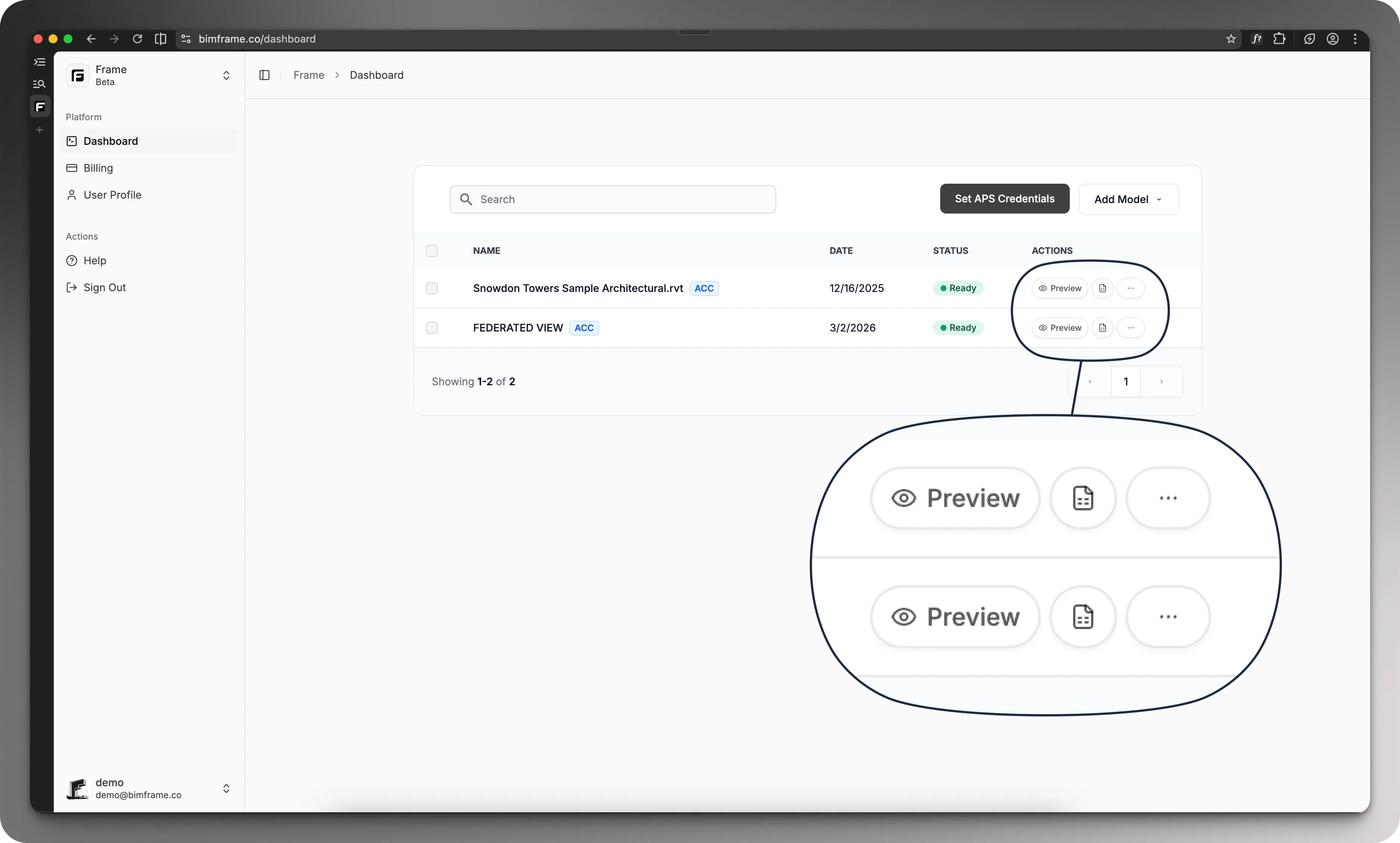
What to look for on the dashboard
Section titled “What to look for on the dashboard”- Your available models or datasets.
- Processing status for each model.
- The viewer button for opening the 3D model.
- The report button for choosing a template and downloading Power BI reports.
- The overflow menu for updating or deleting an existing model.
- Project-level options like uploading new files or connecting ACC.
The most important status to watch is Ready. A model usually needs to reach this state before you can reliably open it in the viewer or use it in Power BI and Excel workflows.
Open model details
Section titled “Open model details”Click the model name to open its details panel. From there you can review the model ID, the model version, and source-specific controls. You can also use the version dropdown to see the versions you have uploaded over time and switch between them.
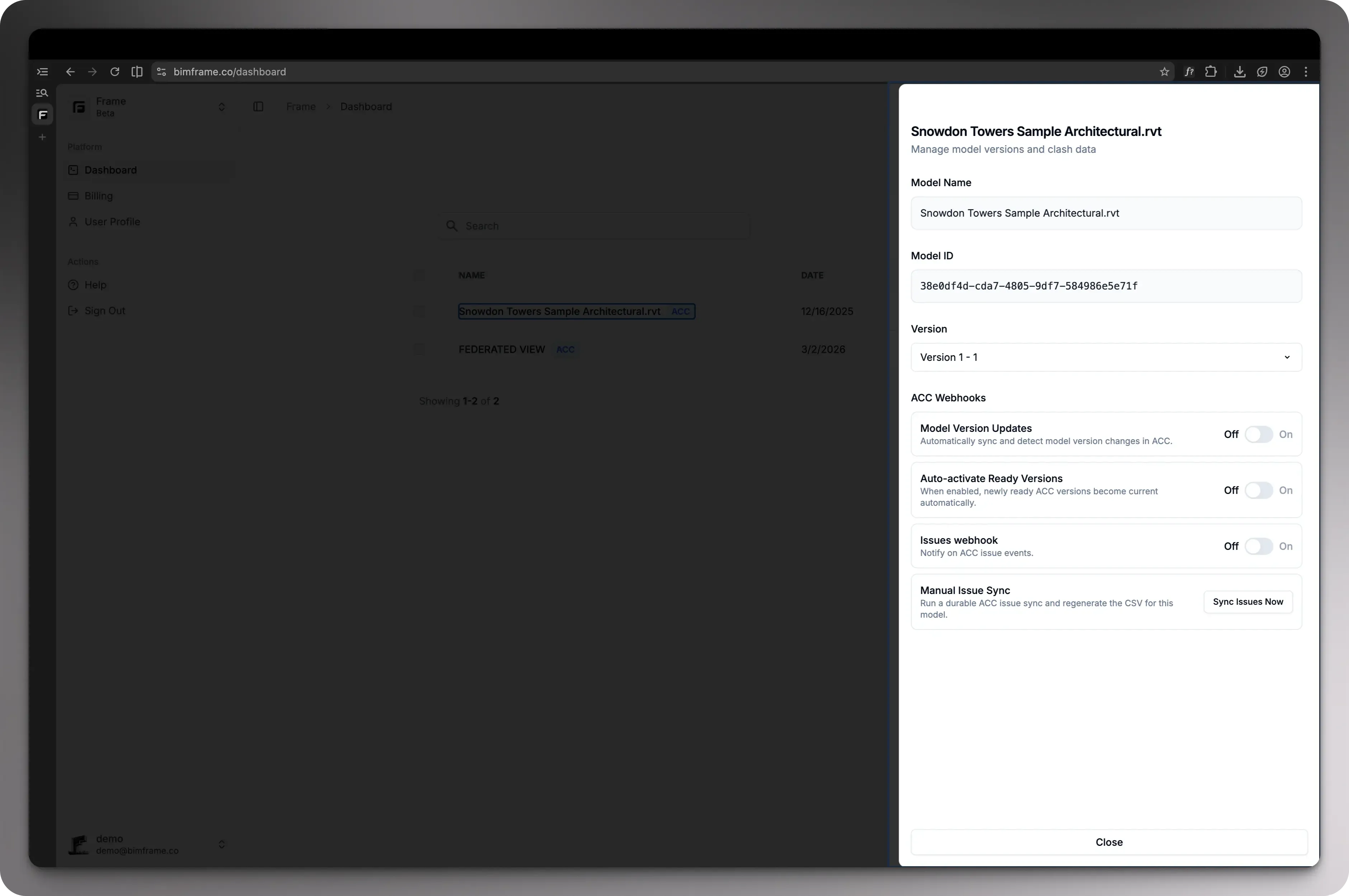
Depending on the model source, the details panel also gives you extra controls:
- For ACC models, you can toggle automatic version updates on or off.
- For ACC models, you can also toggle ACC issue activation.
- For ACC models, the update flow happens from this drawer, where you can pick from the available ACC versions.
- For Naviswork models, you can upload clash files and use them later with clash coordination report templates.
Model actions
Section titled “Model actions”Once a model finishes processing, the dashboard exposes the actions your team will use most often.
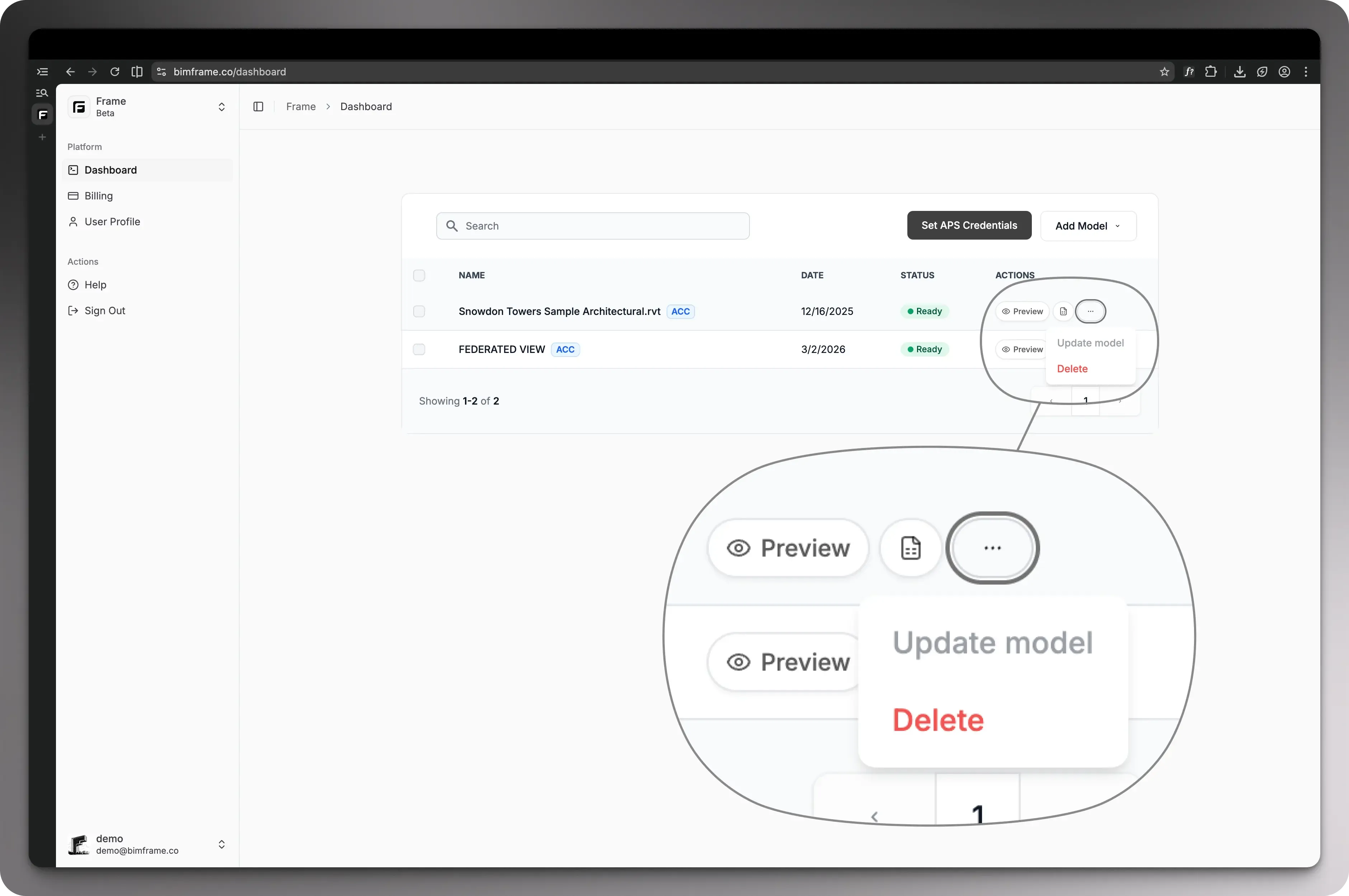
Typical next actions are:
- Update the model from the overflow menu.
- Delete an existing model if it is no longer needed.
Recommended next step
Section titled “Recommended next step”- If you still need to add source data, continue to Upload and connect models.
- If your model is ready, continue to Viewer and markups.
Video placeholder: the original dashboard walkthrough clip is referenced in the source notes but was not available as a reusable URL at implementation time.