
Frame Power BI Viewer
Frame viewer inside Power BI
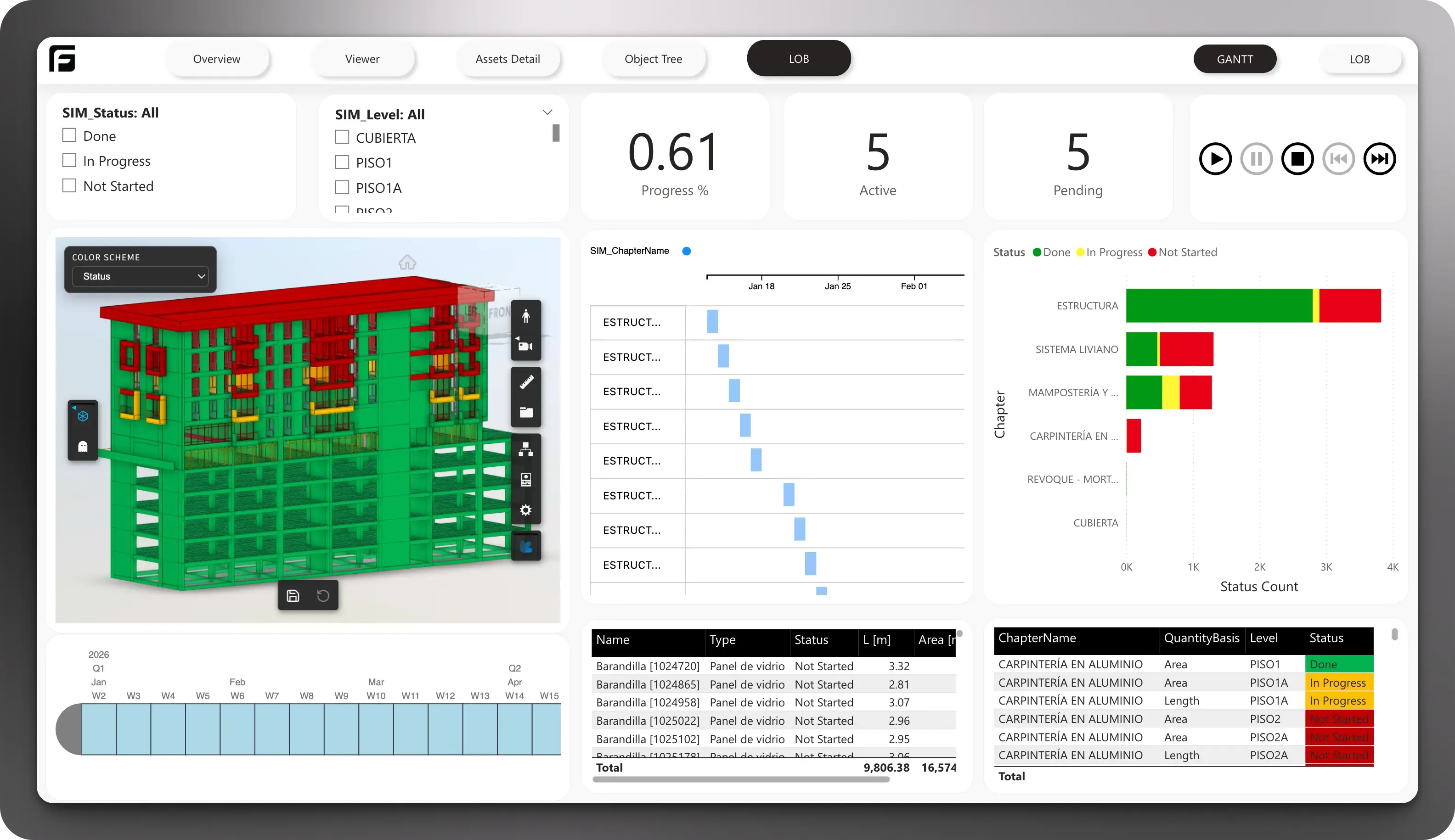
Section titled “Frame viewer inside Power BI”The Frame viewer is embedded directly into the Power BI report, so teams can move from filters, charts, and tables into model context without leaving the dashboard.
This is the main viewer experience inside a Power BI template. The report keeps the BIM model, KPIs, charts, and detailed tables in the same review flow.
Browse the model when nothing is selected
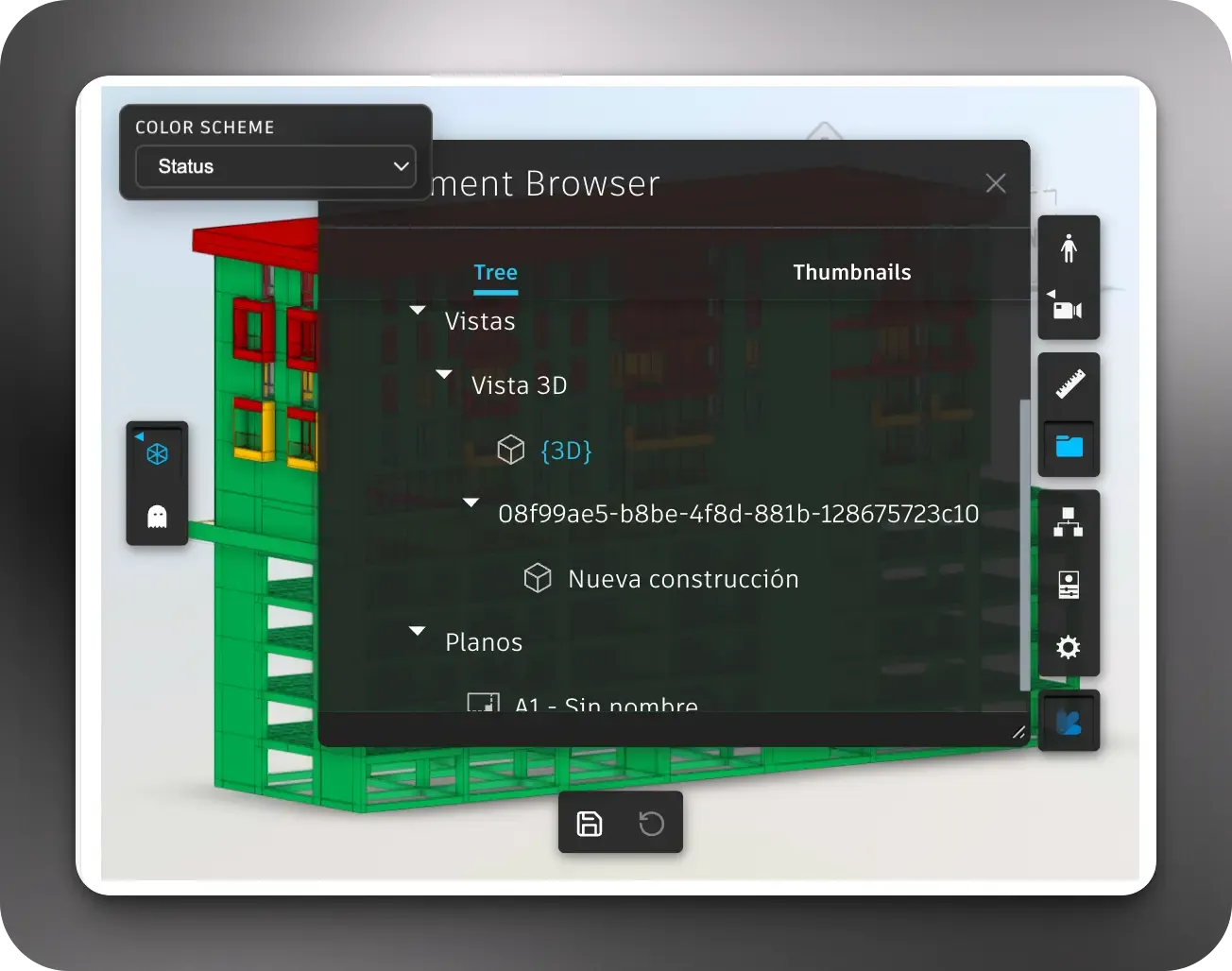
Section titled “Browse the model when nothing is selected”The viewer is not limited to reacting to selections coming from Power BI visuals. Users can also drive the review directly from the viewer itself.
This is especially useful when a report needs more than one model context. For example, one viewer can stay in a 3D view while another viewer on a different page, or in a different report layout, can open a sheet or plan view from Revit. That makes it possible to combine 3D review and 2D documentation views inside the same Power BI workflow.
From the viewer, users can:
- switch between available 3D views and plan or sheet views
- browse views through the element browser in tree or thumbnail mode
- open the model tree to inspect the model structure
- click any element and open the properties panel for more detail
- explore the model first, then return to report-driven selections when needed
That matters in real review sessions because users do not always start from a chart click. Sometimes they need to move between saved views, inspect the model hierarchy, or check an element’s properties before going back to the report context.
Choose the interaction mode that fits the review
Section titled “Choose the interaction mode that fits the review”The viewer supports more than one way to inspect selected elements. This is useful because not every review session needs the same visual behavior.
In the interaction controls, users can switch between modes depending on the question they are trying to answer.
X-Ray interaction
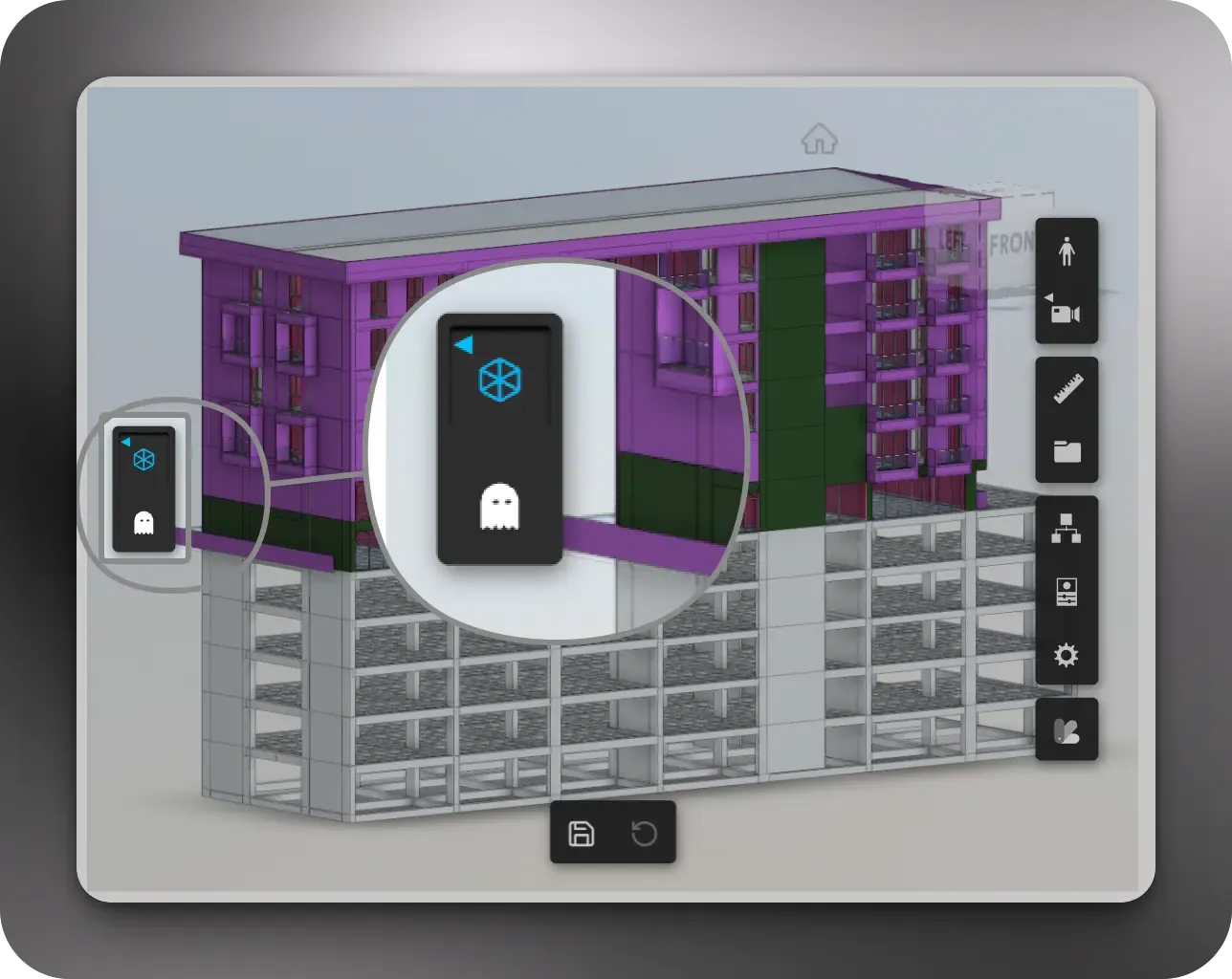
Section titled “X-Ray interaction”One of the most useful interaction modes is X-Ray.
With X-Ray enabled, the selected element stays readable while the rest of the model becomes transparent. This makes it easier to keep surrounding context visible without losing focus on the selected object.
This works well for:
- locating an element inside dense model areas
- checking how a selected object sits within surrounding assemblies
- reviewing filtered report results without fully hiding the rest of the model
Zoom to selected elements
Section titled “Zoom to selected elements”The viewer can also work with Zoom to fit behavior for selected elements. When this interaction is enabled, selecting an element automatically frames it in the viewer so the user does not need to manually navigate to the object.
That is especially useful when selections come from:
- tables with long element lists
- report filters that isolate a small subset
- issue and QA dashboards
- quantity and status review pages
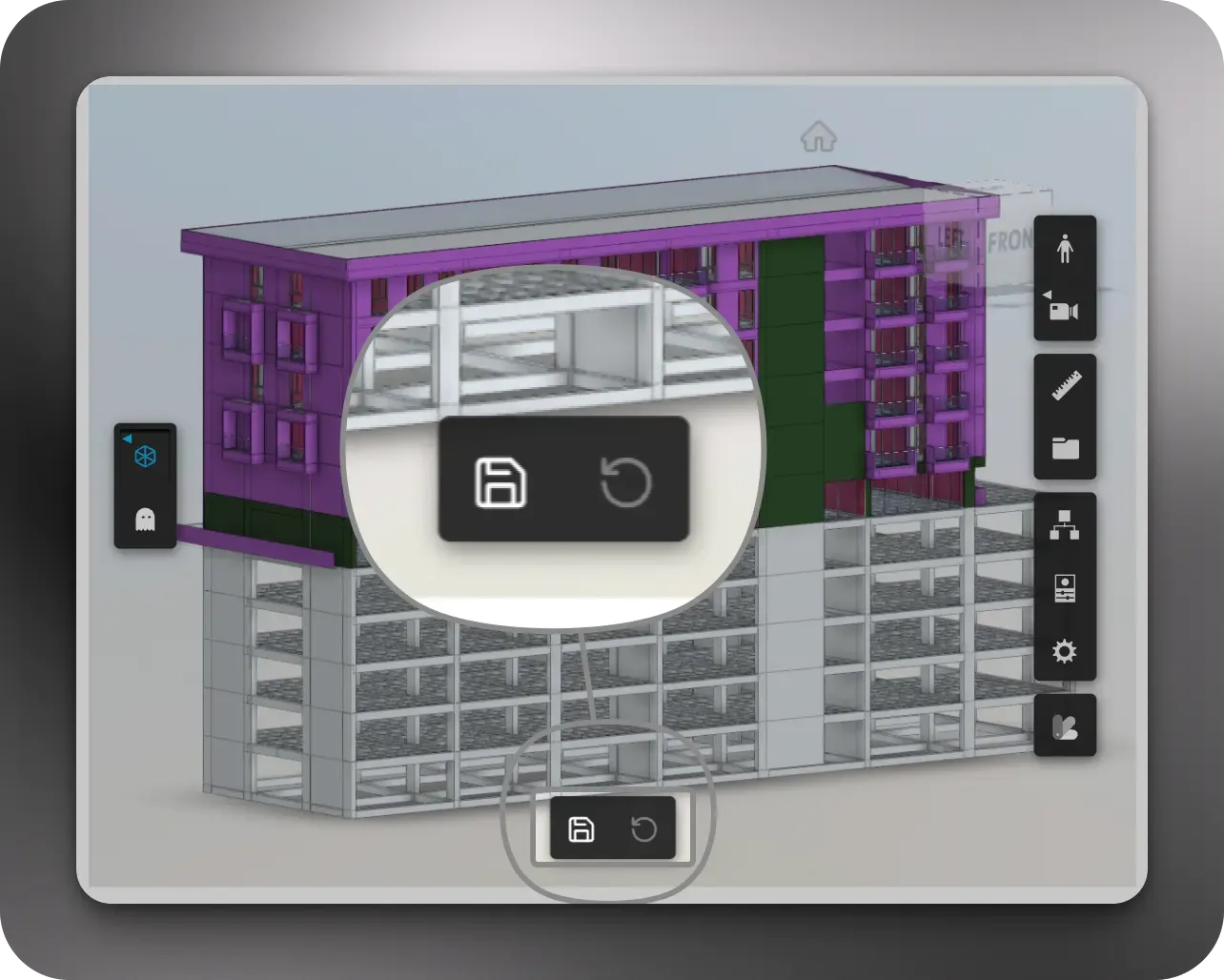
Save the current viewer state
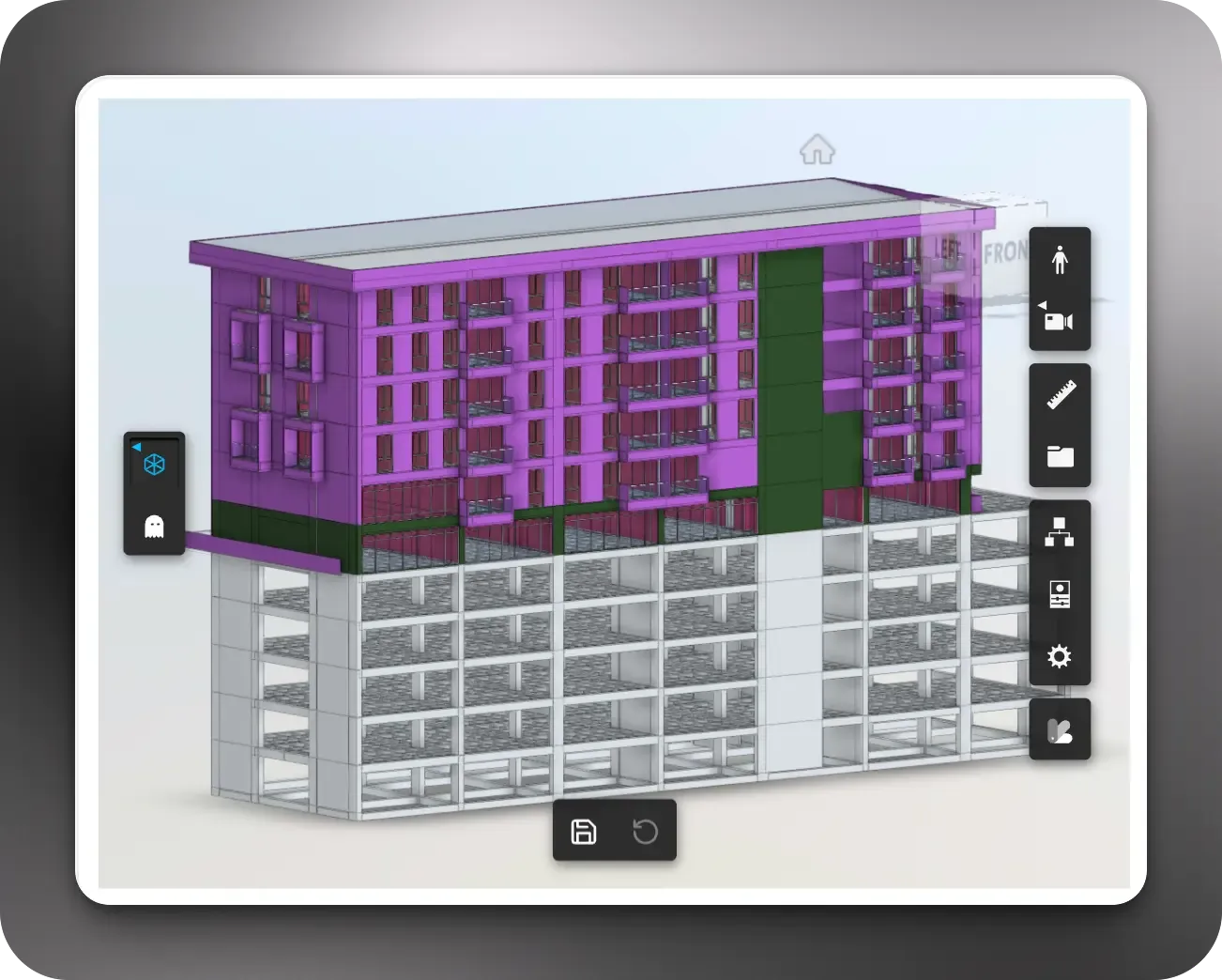
Section titled “Save the current viewer state”Users can save the current view state directly in the viewer. This helps when a team wants to preserve a useful camera position or a prepared review state inside the Power BI workflow.
Saved states are practical for:
- recurring coordination meetings
- stakeholder presentations
- repeated QA reviews
- returning to the same visual context after changing filters
Why this works well in Power BI
Section titled “Why this works well in Power BI”The strength of the Frame Power BI viewer is that it supports both sides of the workflow:
- report-driven review from charts, slicers, and tables
- direct model browsing when users need to inspect the BIM context first
That makes it a strong alternative to disconnected viewer workflows where users have to leave Power BI, search for the same element again, and rebuild the context in another tool.
Continue from here
Section titled “Continue from here”- Use Choose a template to match the viewer to the right report package.
- Use Update a model and refresh a report when the underlying model changes.
- Use Power BI templates for the template catalog that includes viewer-enabled reports.