
Viewer and sheet interactions
Keep 3D context connected to rows, filters, and selections inside Excel.
The Frame Excel Add-In turns Excel into a working environment for BIM analysis instead of a one-time export target.
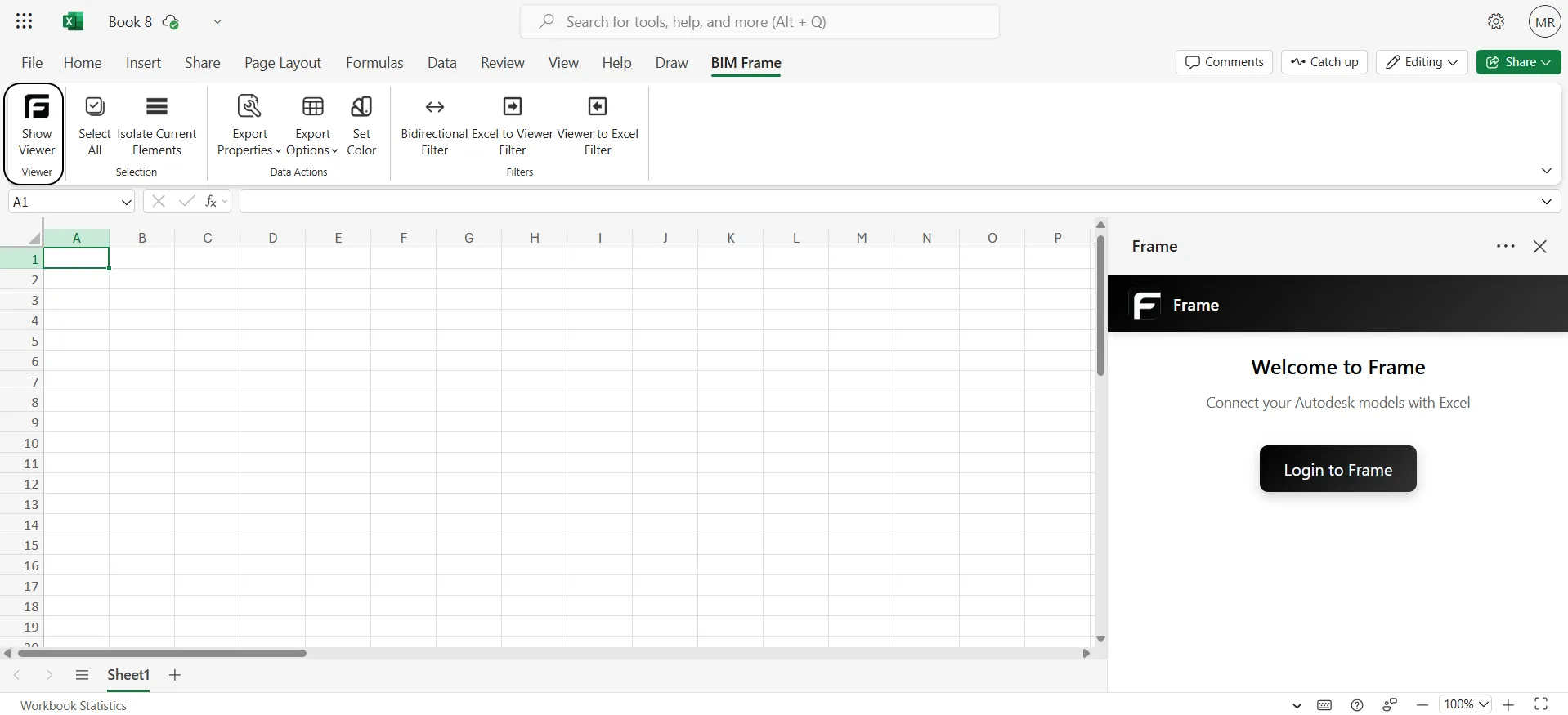
The most useful pattern is:
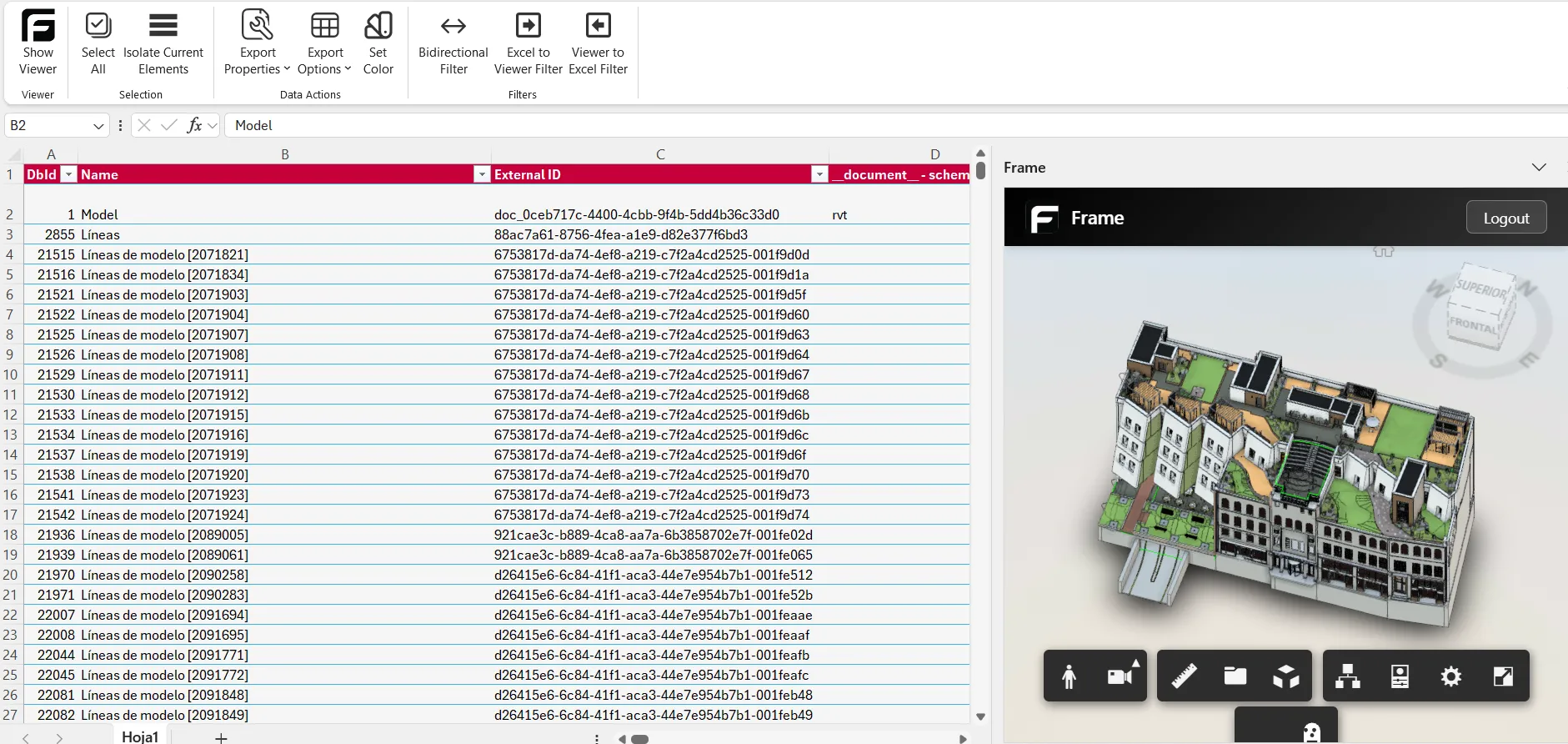
Viewer and sheet interactions
Keep 3D context connected to rows, filters, and selections inside Excel.
Color elements
Apply FrameColor columns so Excel logic becomes spatial color in the
viewer.
Pivot tables
Summarize BIM data quickly without losing the ability to validate it in 3D.
Refresh tables
Update an existing workbook when a new version of the model is available.
Connect to Power BI
Treat Excel as the operational layer and Power BI as the reporting layer.
Use Excel column conventions for stable
rules like FrameColor naming and status columns.