
Connect to Power BI
Why connect Excel to Power BI
Section titled “Why connect Excel to Power BI”One of the most exciting parts of the Excel Add-In workflow is that Excel does not have to be the final destination.
The datasets created with the Frame Excel Add-In can become a strong bridge into Power BI. Every company and every user may find different kinds of value here, and the possibilities are broad. In practice, one of the most useful workflows today is enriching the dataset you already created from the model.
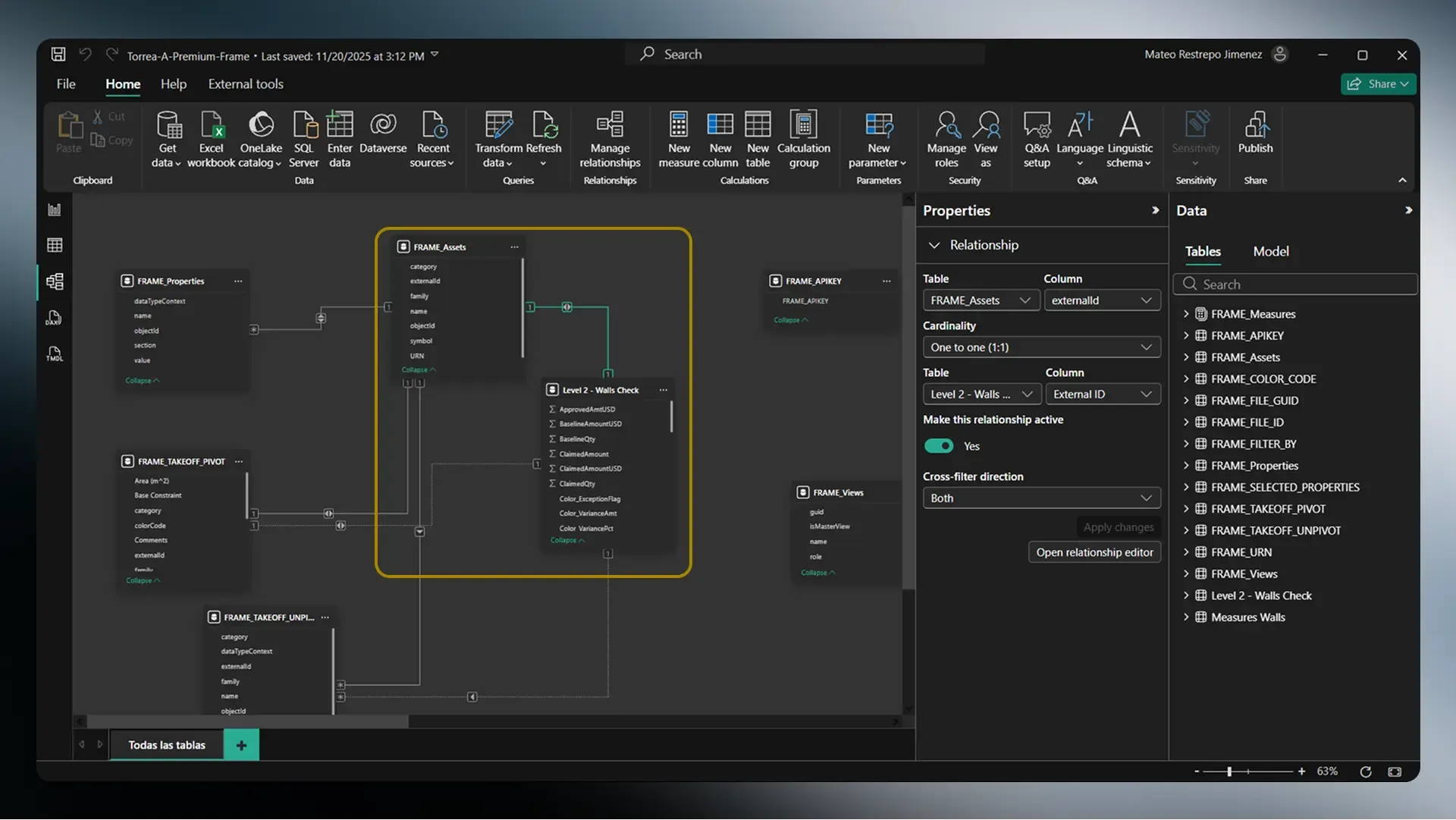
Frame creates the structured starting point. From there, teams can extend that data into whatever reporting logic matters most for their organization.
Enrich the dataset in Excel
Section titled “Enrich the dataset in Excel”After exporting a clean table from Frame into Excel, users can add business-oriented information that may not live in the BIM model itself, such as:
- estimating names
- cost codes
- assembly descriptions
- bid package labels
- procurement groupings
- responsibility assignments
- internal classifications
That is only one example, but it captures the broader opportunity. Frame helps teams move from raw model properties to a clear, structured dataset, and Excel becomes the place where estimating, procurement, operations, and internal business logic can be layered in.
AI add-ins such as ChatGPT or Claude can also help enrich Frame datasets in Excel with additional business context. If that kind of workflow is relevant to your team, let us know and we can share more specific examples.
Recommended pattern
Section titled “Recommended pattern”- Export a focused dataset from Frame into Excel.
- Add business context that does not live in the model itself.
- Store the sheet in a shared cloud location such as OneDrive or SharePoint.
- Connect Power BI to that shared sheet.
- Let the report update as the workbook evolves.
Turn Excel into a live reporting bridge
Section titled “Turn Excel into a live reporting bridge”One of the most powerful extensions of this workflow is that the Excel sheet does not need to stay local.
If the sheet is stored in the cloud, for example in OneDrive or SharePoint, Power BI can connect directly to that sheet data. That means if someone on your team updates the workbook, those changes can flow through to the Power BI report without rebuilding the workflow from scratch.
This turns Excel into a live operational layer between model data and reporting. Instead of treating Excel as a one-time export, teams can use it as a shared working dataset that continues evolving as estimating decisions, classifications, and review inputs are added.
In practice, a team can:
- export model-based quantities from Frame into Excel
- enrich that dataset with estimating or package information
- publish the sheet to the cloud
- connect Power BI to that shared sheet
- keep the report aligned as the team continues working
This creates a more dynamic workflow where Excel becomes the collaboration layer and Power BI becomes the reporting layer.
Walkthroughs
Section titled “Walkthroughs”Open the OneDrive to Power BI walkthrough
Open the live Excel update walkthrough
Why this workflow is useful
Section titled “Why this workflow is useful”The goal is not just to export data. It is to help teams move faster from model information to usable insight.
With Frame, teams can:
- reduce model noise early
- create focused flat tables
- enrich those tables with business context in Excel
- keep the shared dataset live in the cloud
- extend that workflow into Power BI for richer reporting