
Refresh tables
Keep the workbook, update the data
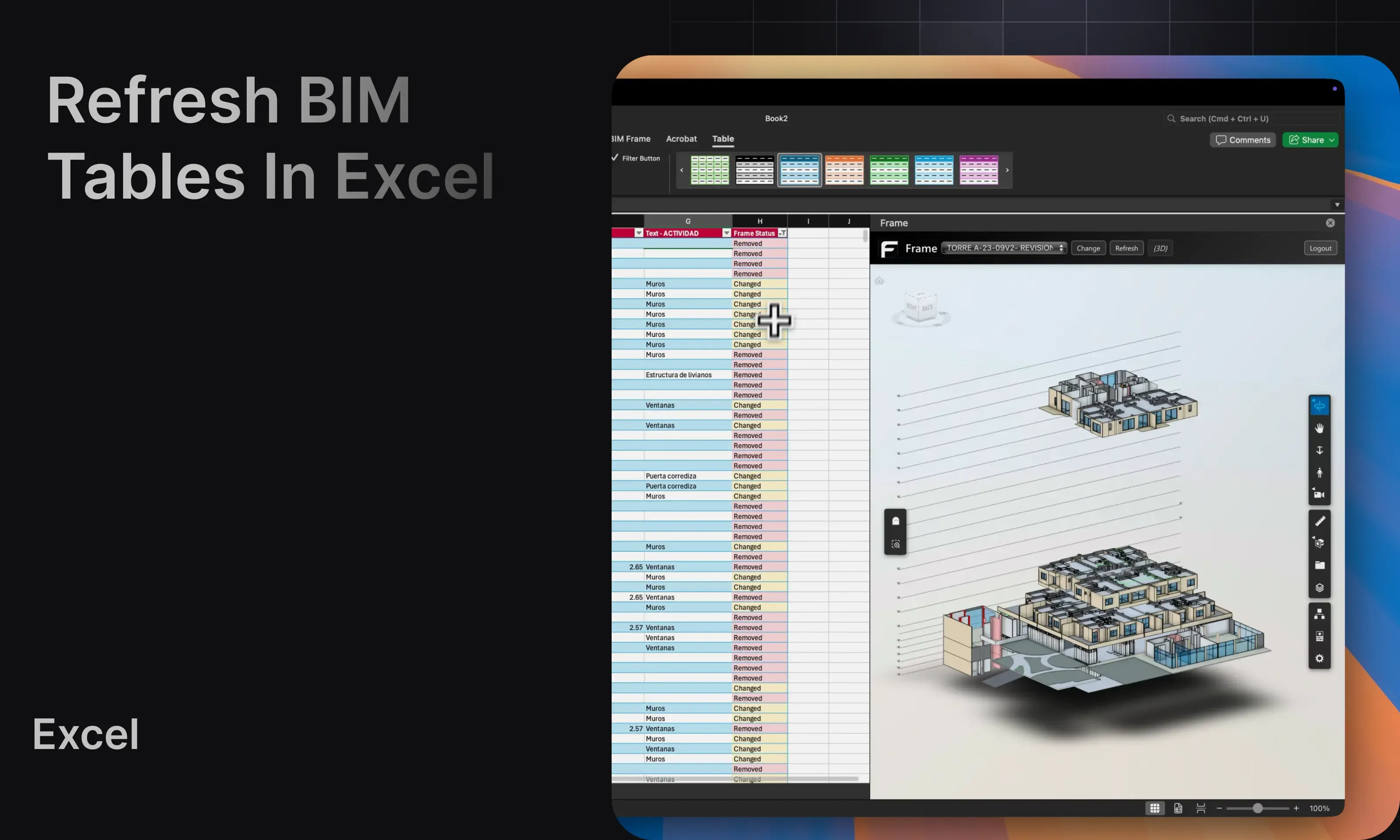
Section titled “Keep the workbook, update the data”One of the most practical Excel workflows in Frame is table refresh. Instead of rebuilding the workbook every time the model changes, you can point the existing table to an updated model and refresh it.
Refresh flow
Section titled “Refresh flow”- Open the workbook that already contains the exported Frame table.
- Open the Frame Excel Add-In.
- Load the updated version of the model.
- Select the existing table you want to keep.
- Run the refresh action.
- Continue working in the same workbook structure.
What this improves
Section titled “What this improves”- your workbook survives model revisions
- review cycles are easier to repeat
- users spend less time rebuilding exports
- downstream charts and pivots stay closer to the latest model state
Status output
Section titled “Status output”After refresh, review the status column to understand what changed between the previous and current version:
AddedChangedRemoved