
Frame Excel Viewer
Frame viewer inside Excel
Section titled “Frame viewer inside Excel”The Frame viewer is embedded directly into the Excel Add-In workflow, so teams can work with workbook data and BIM context at the same time.
Instead of exporting model data into a spreadsheet and losing the visual context, the viewer stays next to the worksheet while users review properties, filter rows, and validate model elements.
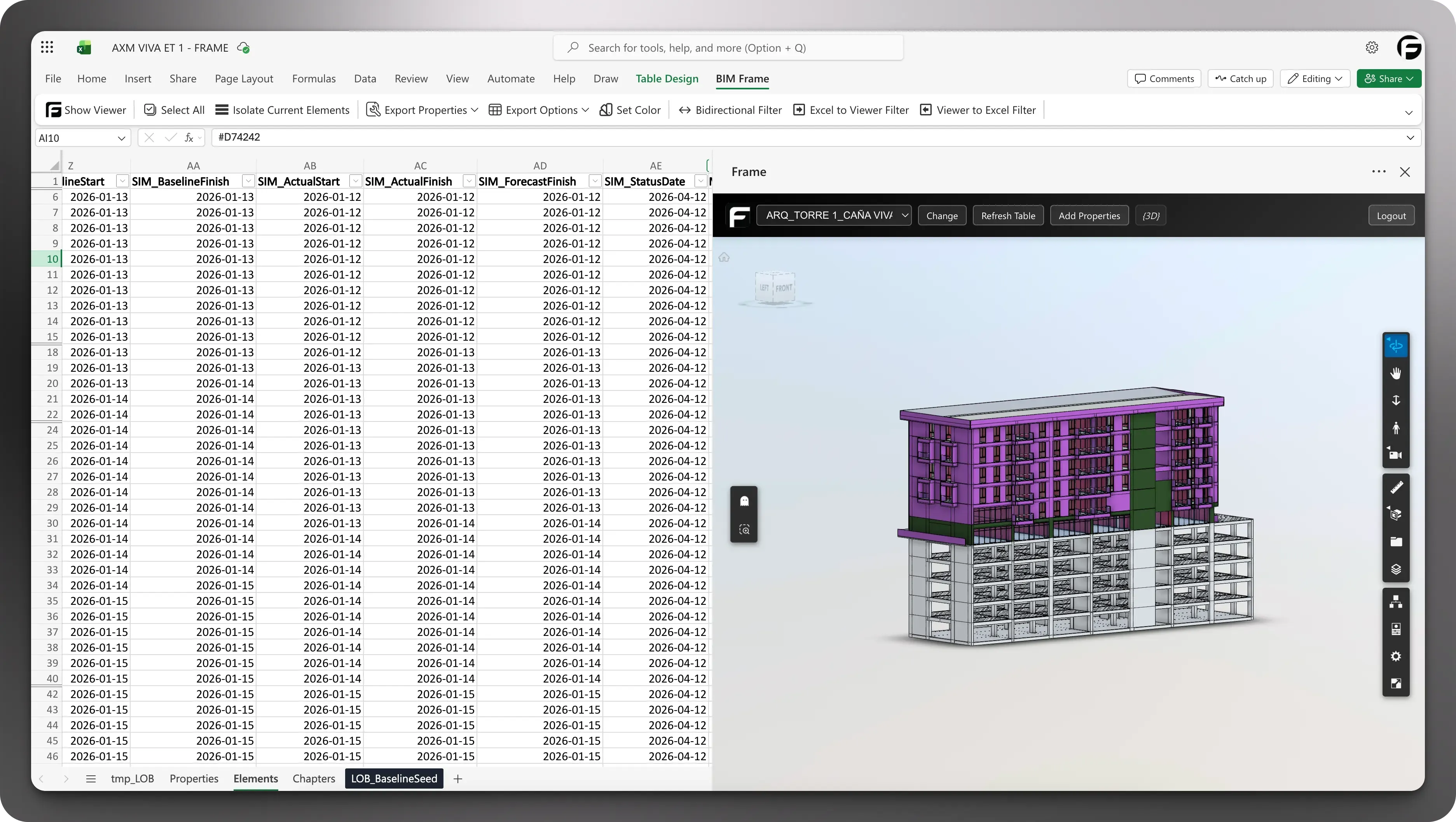
Work from the BIM Frame ribbon
Section titled “Work from the BIM Frame ribbon”The Excel workflow starts from the BIM Frame ribbon, where the main viewer and data actions are available in the same place.
From this ribbon, users can:
- open the viewer
- isolate the current elements
- export properties and choose export options
- apply color logic
- use bi-directional, Excel-to-viewer, and viewer-to-Excel filters
This is what makes Excel a working BIM environment instead of just a static export destination.
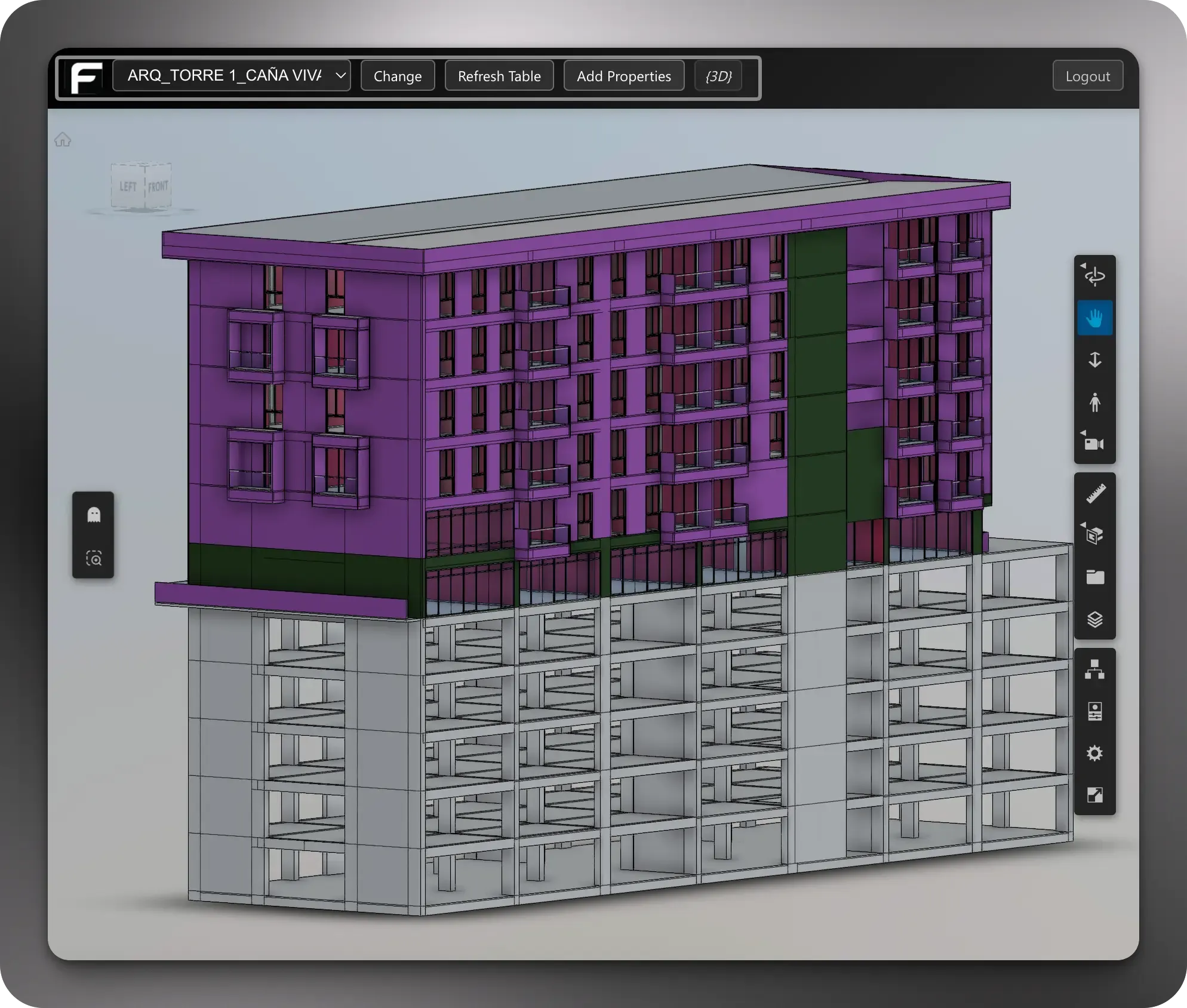
Frame navigation bar
Section titled “Frame navigation bar”Inside the viewer, the Frame navigation bar keeps the most important model and table actions available without restarting the workflow.
From this bar, users can:
- change between available models
- refresh existing tables after the source model has been updated
- add properties to tables that already exist
The Add Properties action is especially useful when a team already created an elements table and only needs to append a new property at the end. Instead of repeating the full export flow from the beginning, users can extend the existing table with the additional property they need.
Browse views and inspect model context
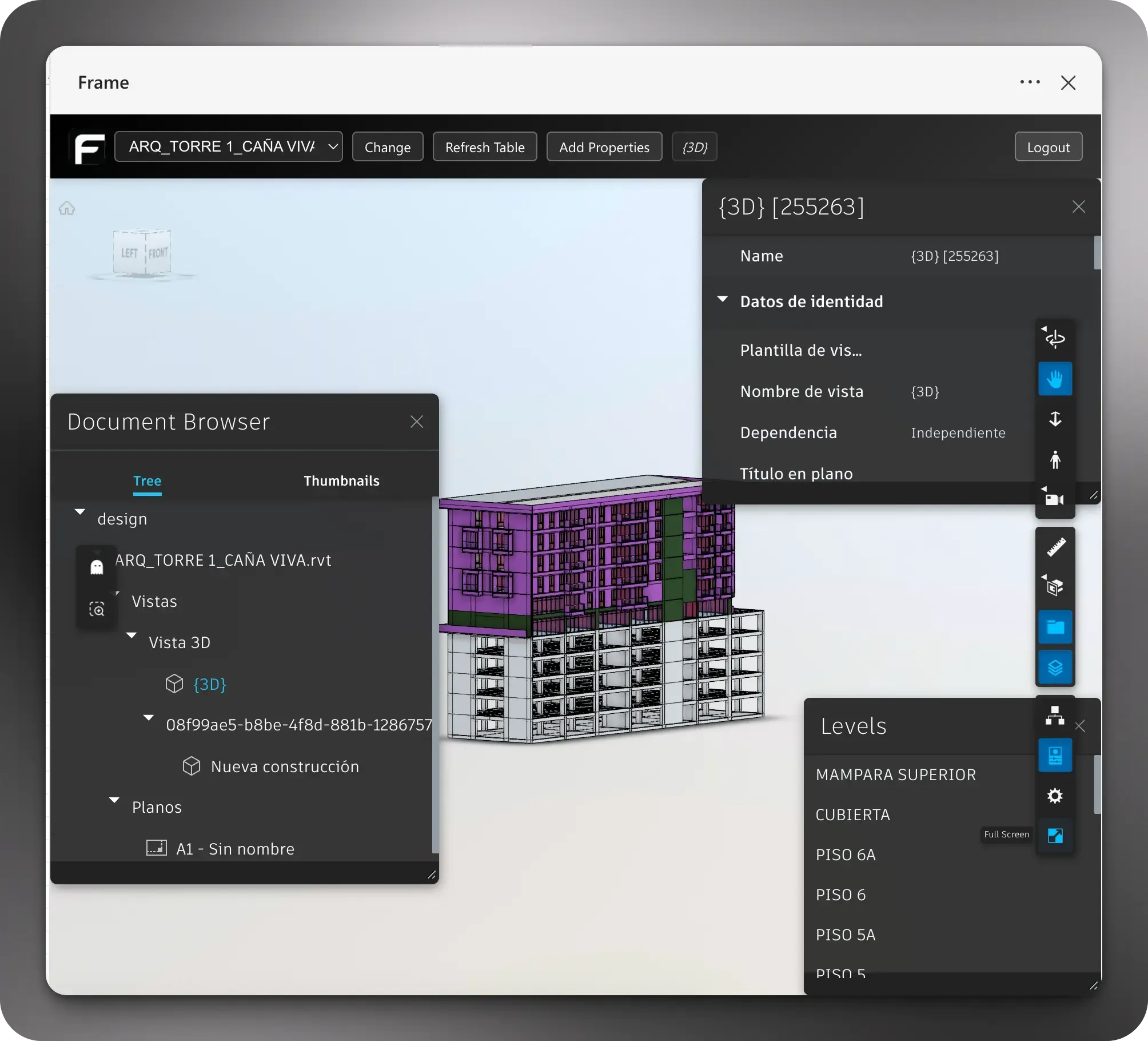
Section titled “Browse views and inspect model context”The Excel viewer is not limited to reacting to spreadsheet selections. Users can also browse the model directly inside the viewer.
From the viewer, teams can:
- open the document browser
- switch between 3D views and plan views
- explore content in tree or thumbnail navigation
- inspect element properties from the properties panel
- review level information without leaving Excel
That matters because spreadsheet workflows often need more than row validation. Teams may need to move between saved views, check model structure, or inspect properties before deciding what to keep, group, or export in the workbook.
Use quick viewer interactions during review
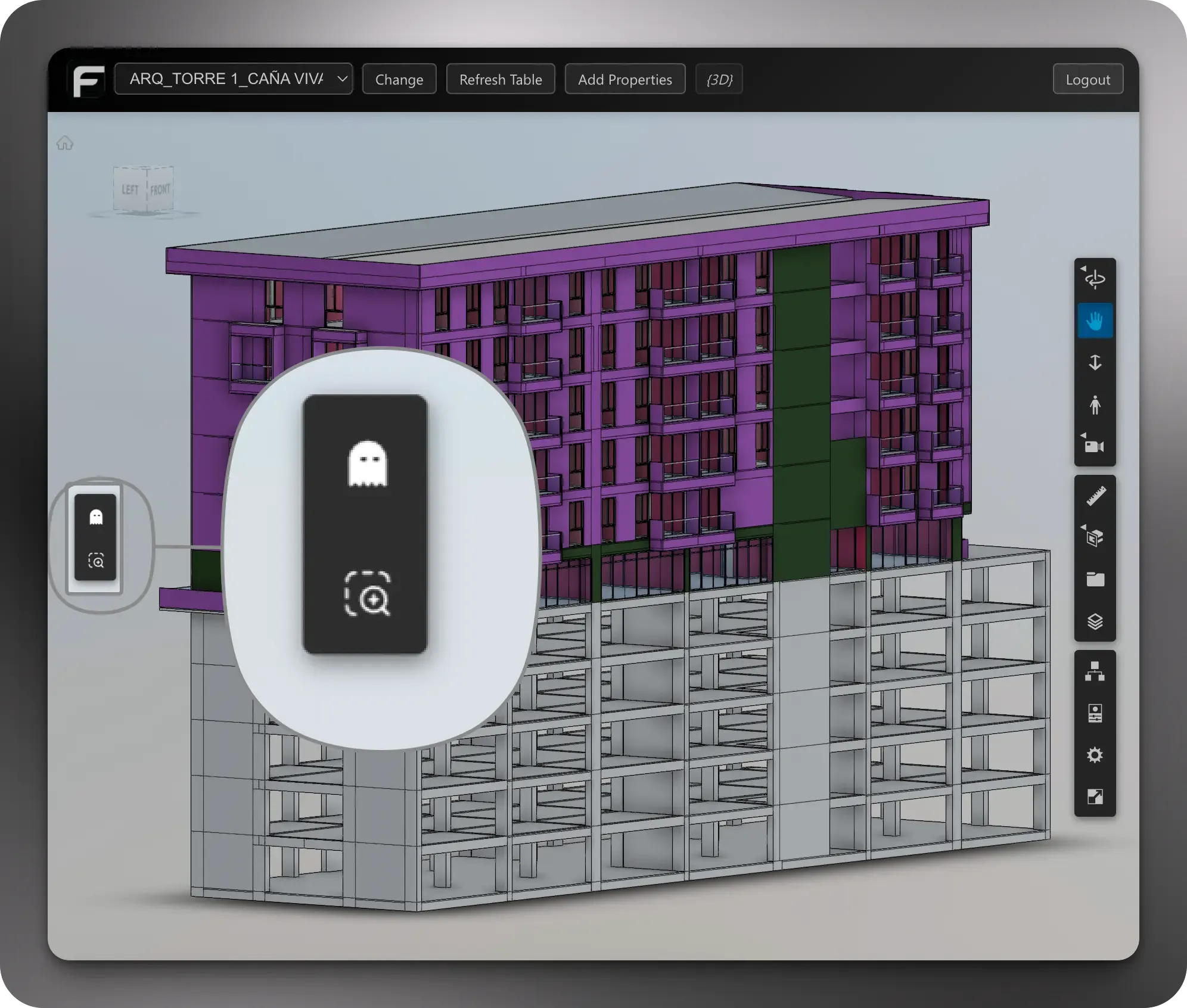
Section titled “Use quick viewer interactions during review”The left vertical toolbar includes two quick toggles that are especially useful during workbook review.
The first button is the ghost toggle. When it is enabled, elements that are not selected are hidden so the current selection becomes easier to review. This is useful when users want to focus only on the elements they are checking without the rest of the model getting in the way.
The second button is the zoom to selection toggle. When it is enabled, the viewer automatically zooms to the selected elements. That selection can come from clicking directly in the viewer or from a worksheet selection when the sheet-to-viewer interaction is also active.
Together, these two controls help teams:
- isolate the current selection visually
- move faster from worksheet rows into model context
- inspect selected elements without manual navigation
- keep review focused during quantity checks and property QA
Why this works well in Excel
Section titled “Why this works well in Excel”The strength of the Frame Excel viewer is that it keeps spreadsheet work and model review in the same environment.
That makes it a strong alternative to workflows where users clean data in Excel, then reopen another viewer just to verify if the rows still match the model context.
Continue from here
Section titled “Continue from here”- Use Viewer and sheet interactions for the step-by-step interaction modes.
- Use Color elements if your review
depends on
FrameColor. - Use Connect to Power BI when the workbook becomes the operational layer for a larger report.