
Federated ACC models (Beta)
What a federated ACC model is
Section titled “What a federated ACC model is”A federated model combines the architecture, structure, MEP, and other child models that participate in an Autodesk Construction Cloud Model Coordination view. Add the federated view to Frame when the review needs the same multi-model context your coordination team uses in ACC.
Frame preserves the relationship between the aggregate view and its source models. This supports whole-project review while still letting a reviewer narrow the data or drill through to one child model.
Before you begin
Section titled “Before you begin”Confirm that:
- the Autodesk Forma/ACC integration is installed and connected
- you can open the target ACC project and its Model Coordination space
- the model set has a federated view with the expected child models
- your Autodesk account has permission to read the models and issues you need
Add a federated view to Frame
Section titled “Add a federated view to Frame”- Open the Frame dashboard and choose to add a model from ACC.
- Browse to the ACC project and its Model Coordination content.
- Find the required item marked Federated View.
- Preview the view and confirm its model set, view, snapshot, and child-model contents.
- Add the federated view to the Frame model library.
- Wait while Frame resolves the child models and prepares the aggregate and source-model analytics data.
- Open the model when its status is Ready and confirm that the expected disciplines appear in the viewer.
Review the model in Frame
Section titled “Review the model in Frame”Start with the full federated 3D view to inspect relationships between disciplines. When a question belongs to one source model, use the federated model browser to switch its view or sheet without losing the aggregate project context.
This is useful for workflows such as:
- checking where an issue sits relative to nearby systems
- moving from the full coordination view to one discipline model
- reviewing 3D geometry and the corresponding 2D sheets
- identifying which child model owns an element or property record
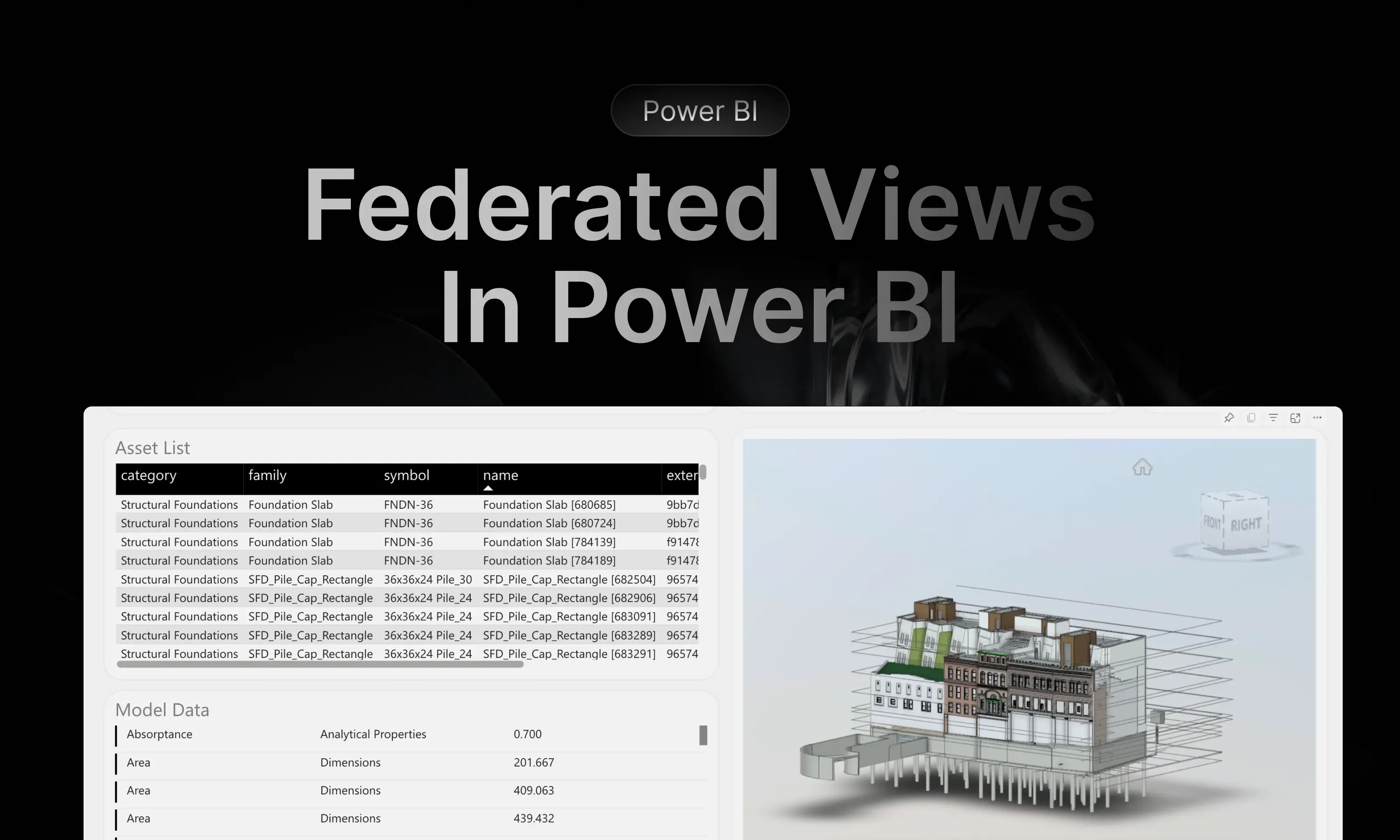
Create a federated Power BI report
Section titled “Create a federated Power BI report”- Open a report slot for the ready federated model.
- Choose Starter. Frame automatically uses the federated Starter template for a federated source.
- At Choose dataset scope, select one of the available boundaries:
- Entire federated model for aggregate data across all child models
- a named source model dataset for a report limited to one child model
- Confirm that the selected scope is marked Ready.
- Generate and download the Power BI template.
- Open it in Power BI Desktop and authenticate when prompted.
The aggregate report supports a federated overview and 3D review across loaded models. Use drill-through to move from the coordination context to the Assets Detail page for a specific child model.
Work with ACC Issues
Section titled “Work with ACC Issues”Choose ACC Issues when the report should focus on issues associated with the ACC project and federated context. Activate Issues Webhooks for the model so Frame can receive issue changes from ACC.
Federated issue review keeps the marker in the multi-model context where it was coordinated. This helps reviewers understand nearby systems and the discipline responsible without reconstructing the issue location manually.
Update the federated source
Section titled “Update the federated source”Use the model details workflow to check the tracked ACC model set, view, and snapshot. When ACC contains a newer federated snapshot, prepare it before switching so the viewer and analytics data stay aligned with the selected coordination state.
After switching snapshots, refresh or regenerate downstream reports as needed and verify the child-model inventory before the next review.