
ACC/Forma Version history (Beta)
When to use Version history
Section titled “When to use Version history”Use Version history when an ACC/Forma model item has multiple synchronized versions and you need to review change across a sequence, not only between two selected versions.
The template can prepare:
- Version changes for consecutive model comparisons
- Property history for selected values across versions
- Full analysis with both datasets
Create the report
Section titled “Create the report”- Open a report slot for the ACC/Forma model.
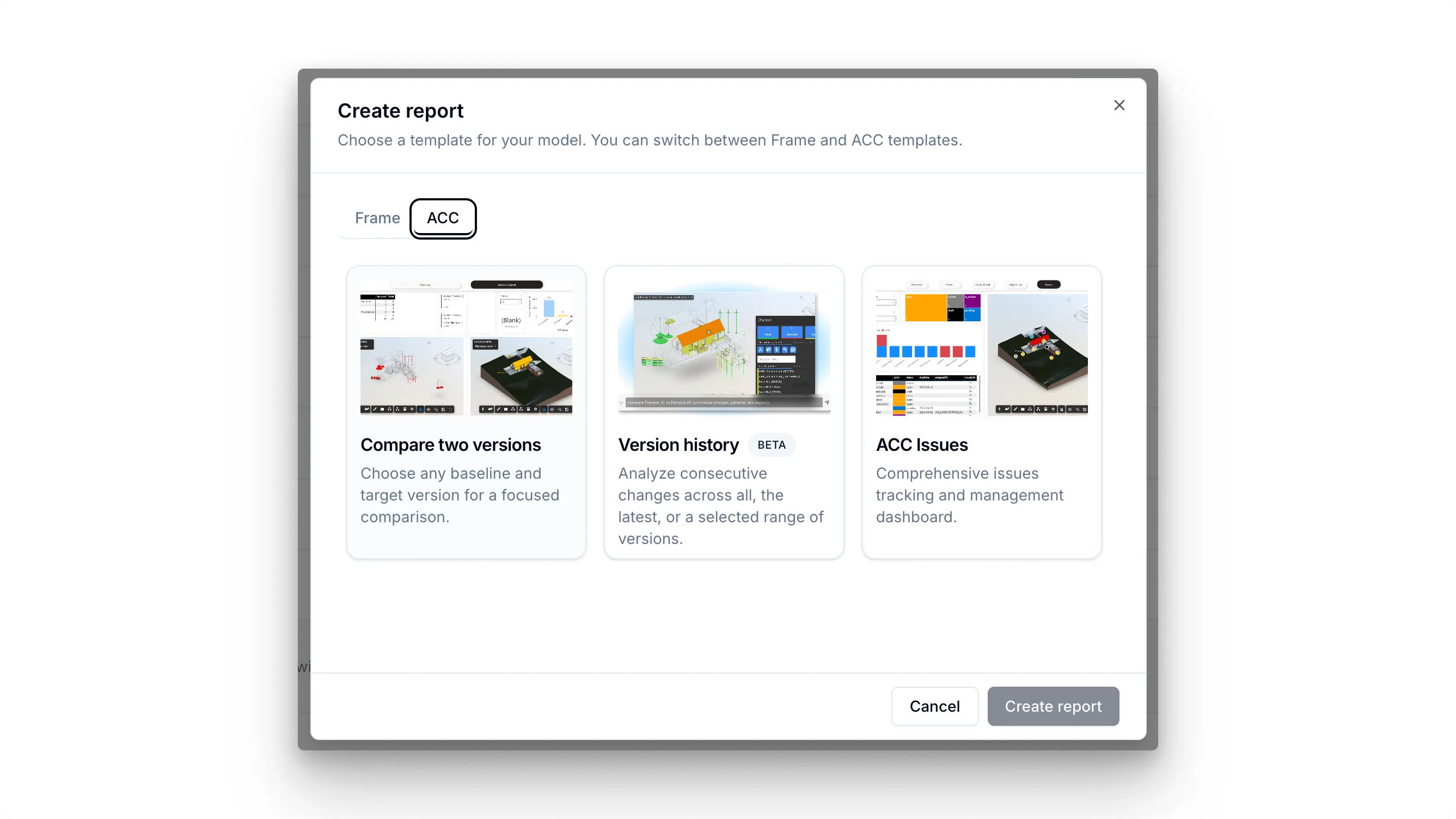
- Choose Version history from the ACC templates.
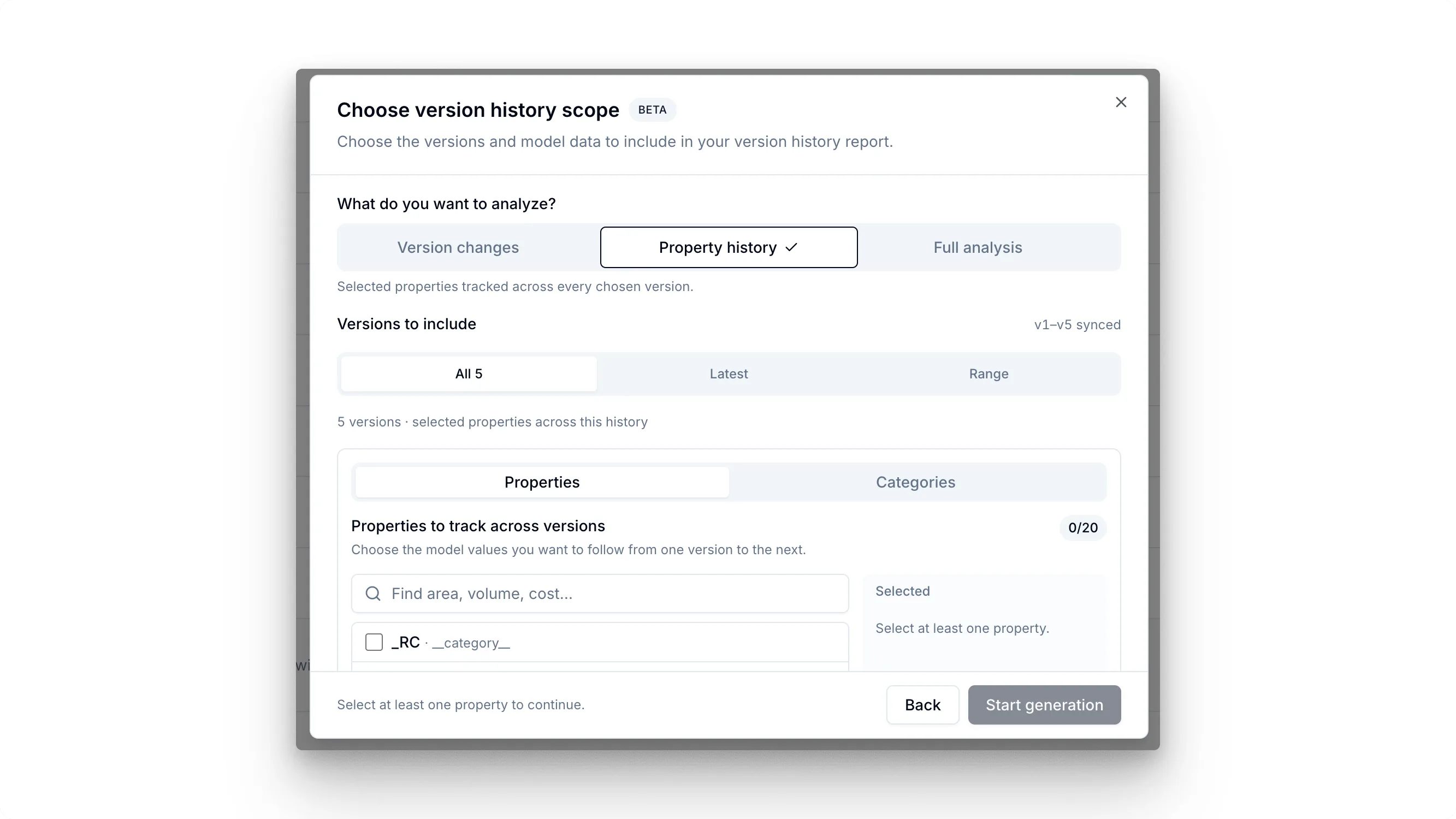
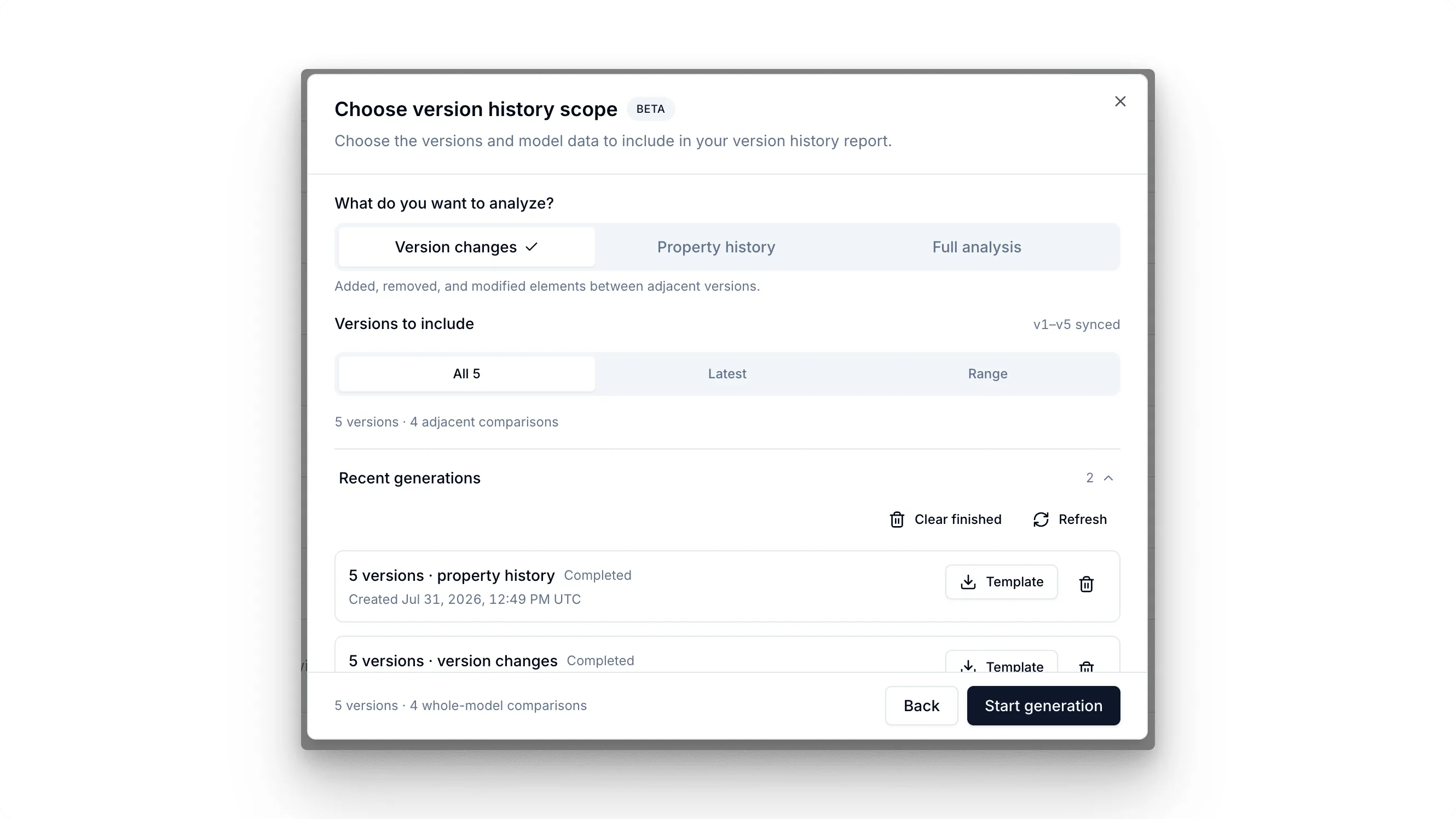
- Select Version changes, Property history, or Full analysis.
- Choose all synchronized versions, the latest versions, or a custom range.
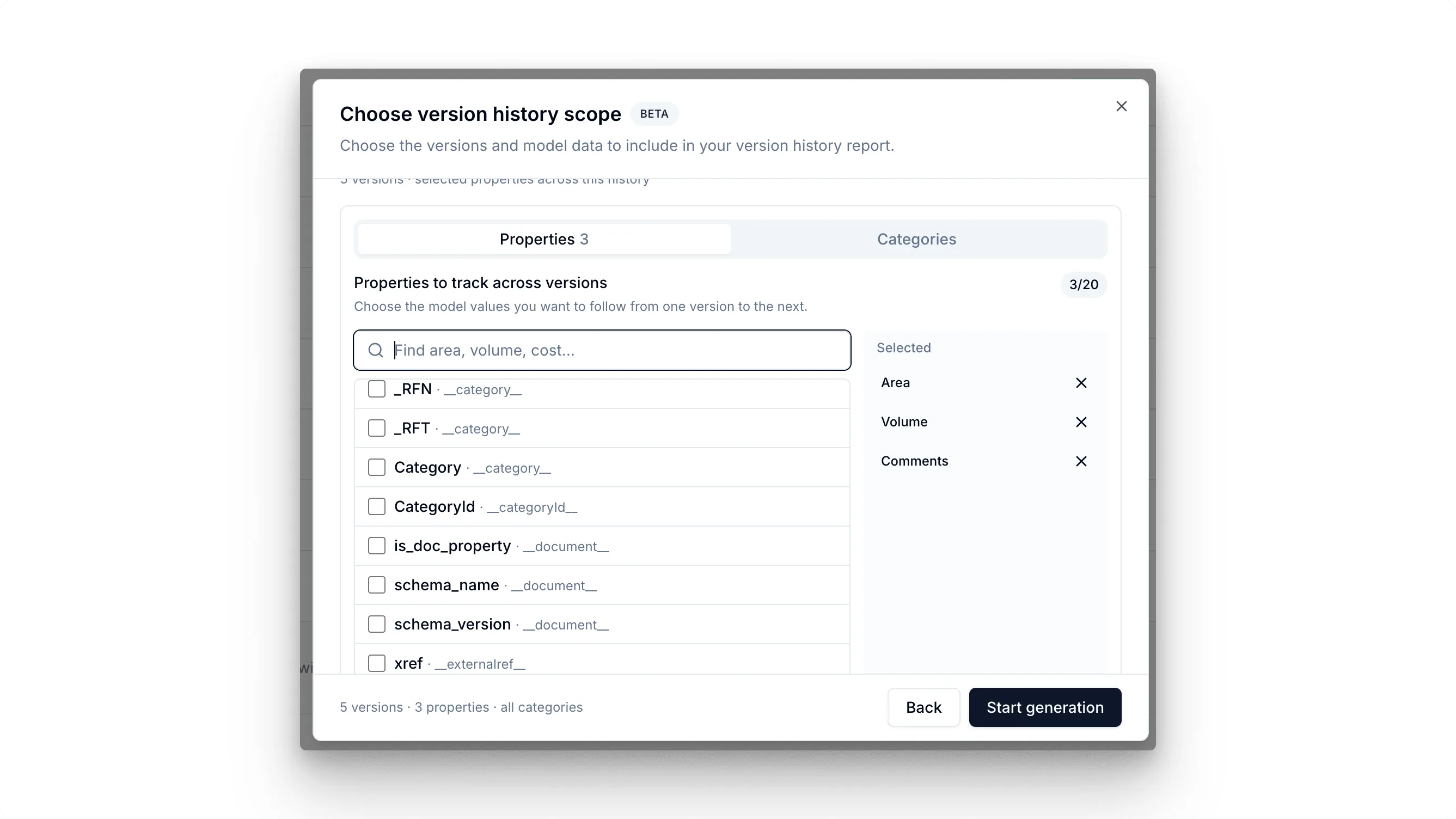
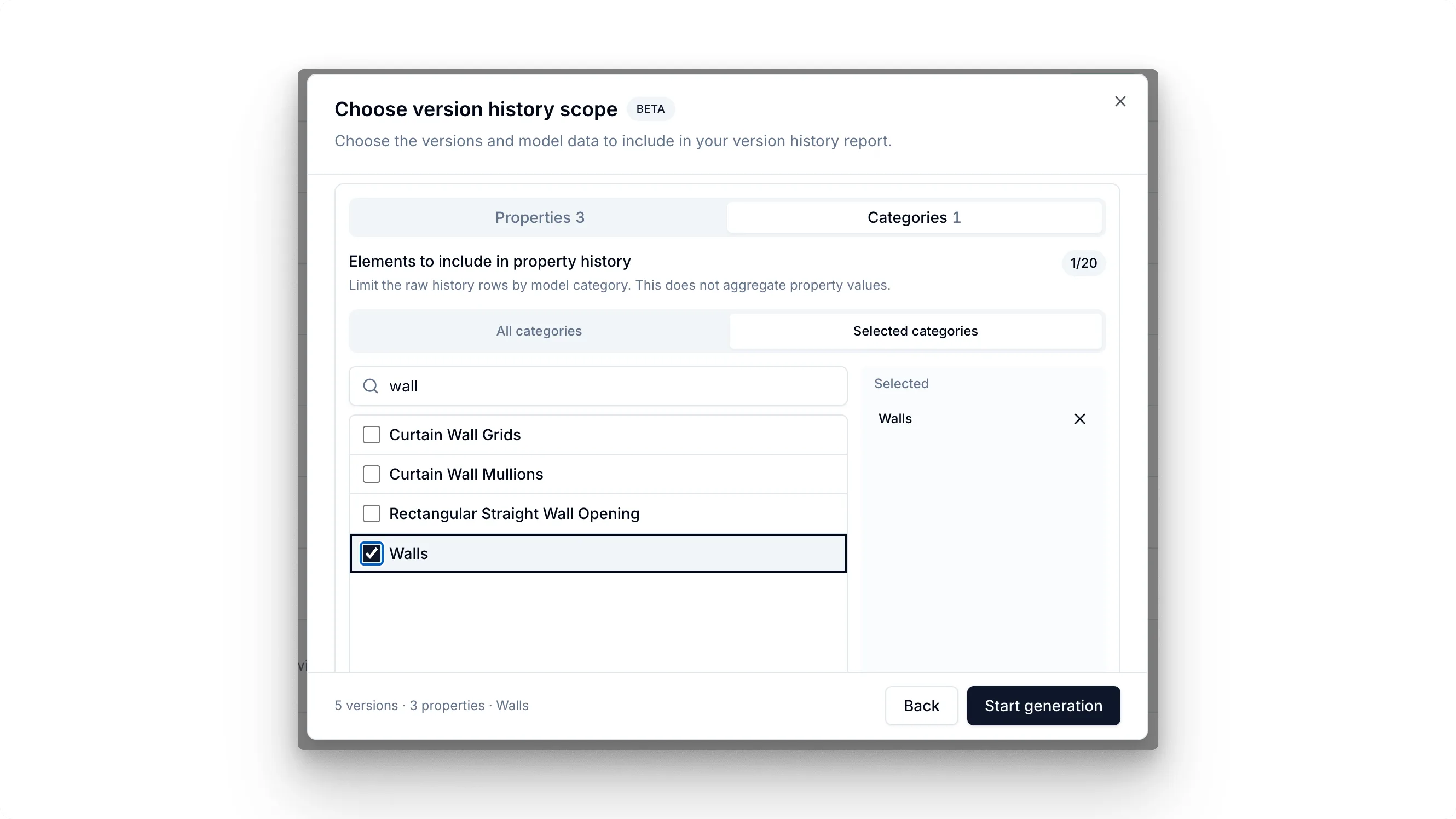
- For property history, select the properties to track and optionally limit the records to the categories relevant to the review.
- Generate the dataset, then download and open the completed Power BI template.
Review version changes
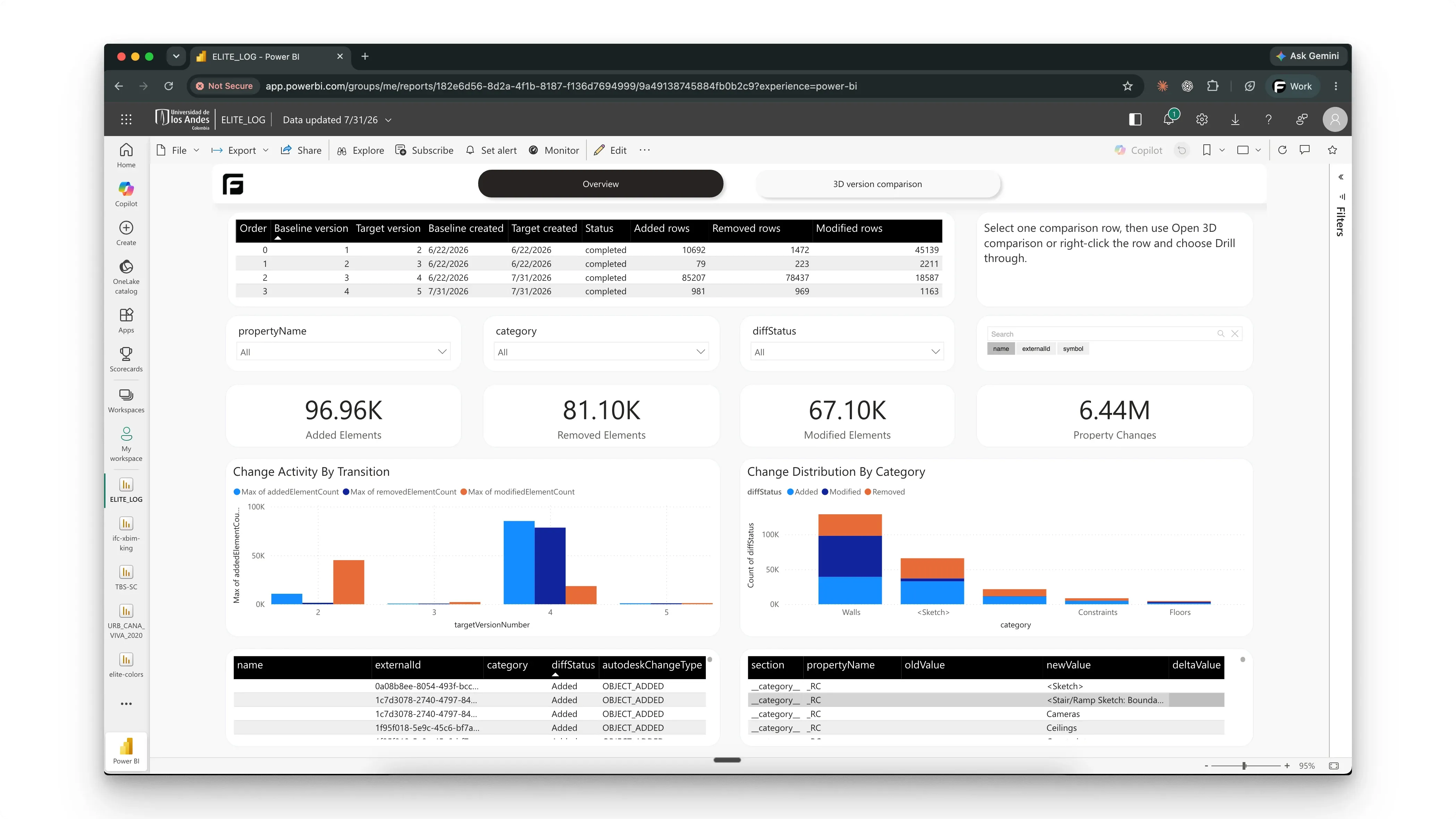
Section titled “Review version changes”Start with the change overview to see added, removed, modified, and unchanged elements across consecutive comparisons. Filter by version, category, level, or status, then use the 3D view to inspect the model objects behind a change.
Review property history
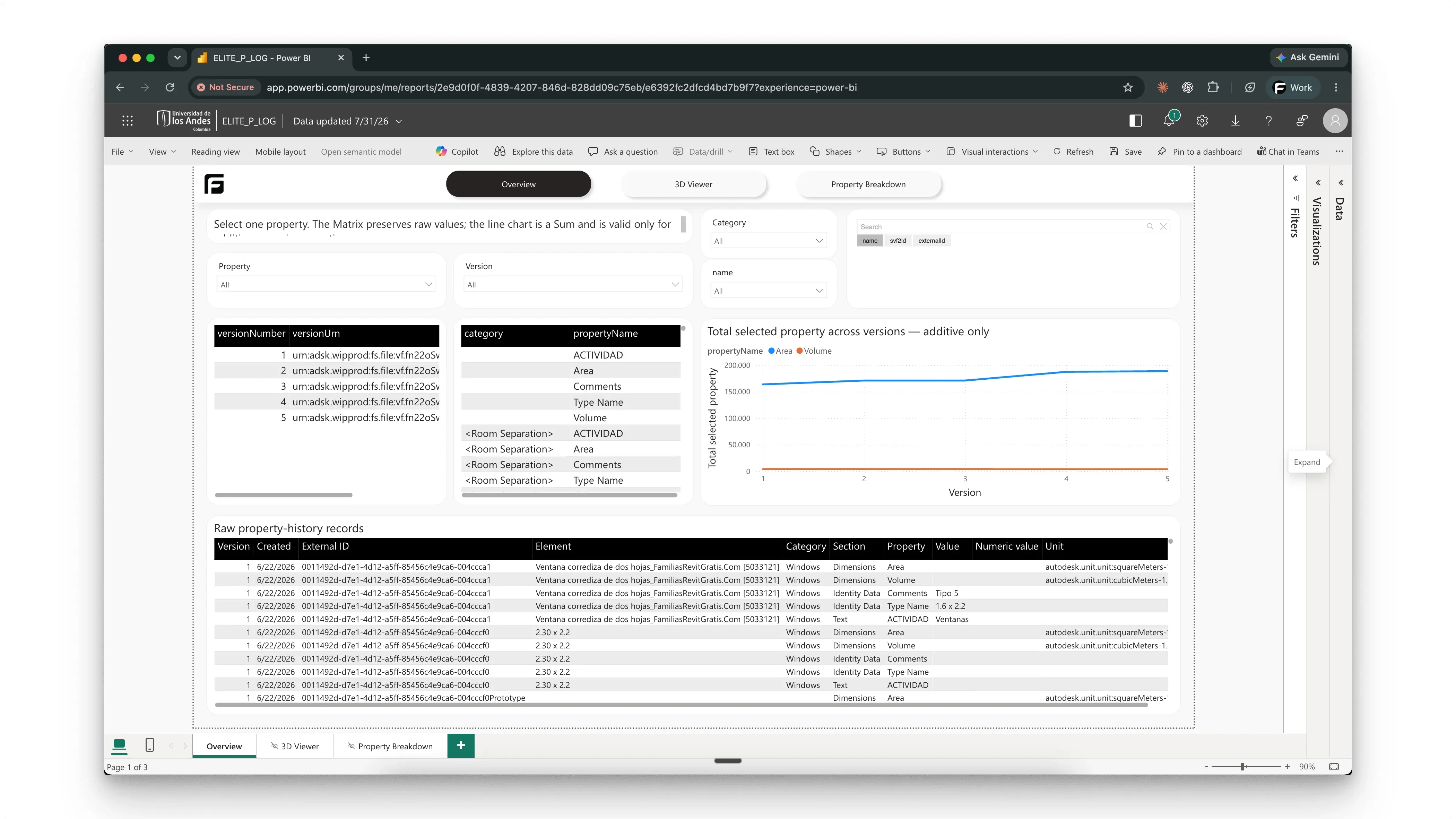
Section titled “Review property history”Property history connects the version inventory to the values you selected during setup. Use the overview to find a trend, then drill into the underlying records and model element when a value needs verification.
Version history or File Version?
Section titled “Version history or File Version?”Choose Version history for a sequence of synchronized versions from one non-federated ACC/Forma item. Choose File Version when comparing two separate completed model uploads in Frame.