
Frame engine for IFC
When to use the Frame engine
Section titled “When to use the Frame engine”Choose the Frame engine when uploading an .ifc file and you want Frame to
prepare its model data, viewer artifacts, and reporting data without requiring
Autodesk Platform Services credentials.
This dedicated path is different from Autodesk translation. The engine you select at upload time determines which viewer and reporting workflows are available for the processed model.
What the Free plan includes
Section titled “What the Free plan includes”For an IFC processed by the Frame engine, the Free plan includes:
- one model slot
- one Power BI report slot
- the IFC Starter Template
- the Frame viewer for inspecting the model next to its report data
Translate an IFC file
Section titled “Translate an IFC file”- Open the Frame dashboard and add a local model.
- Select an
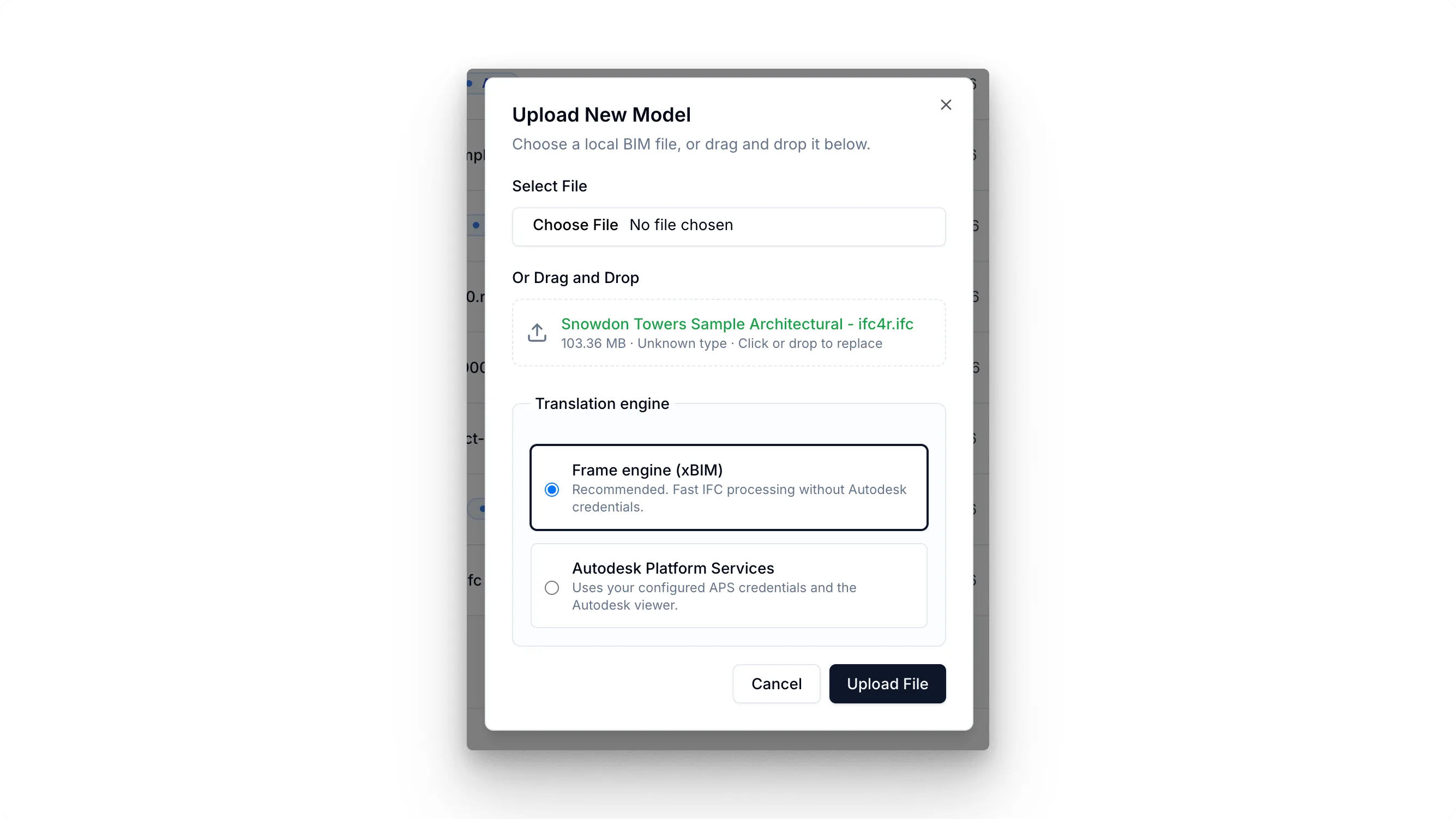
.ifcfile. - Choose Frame engine when the translation options appear.
- Start the upload and wait until the model status is Ready.
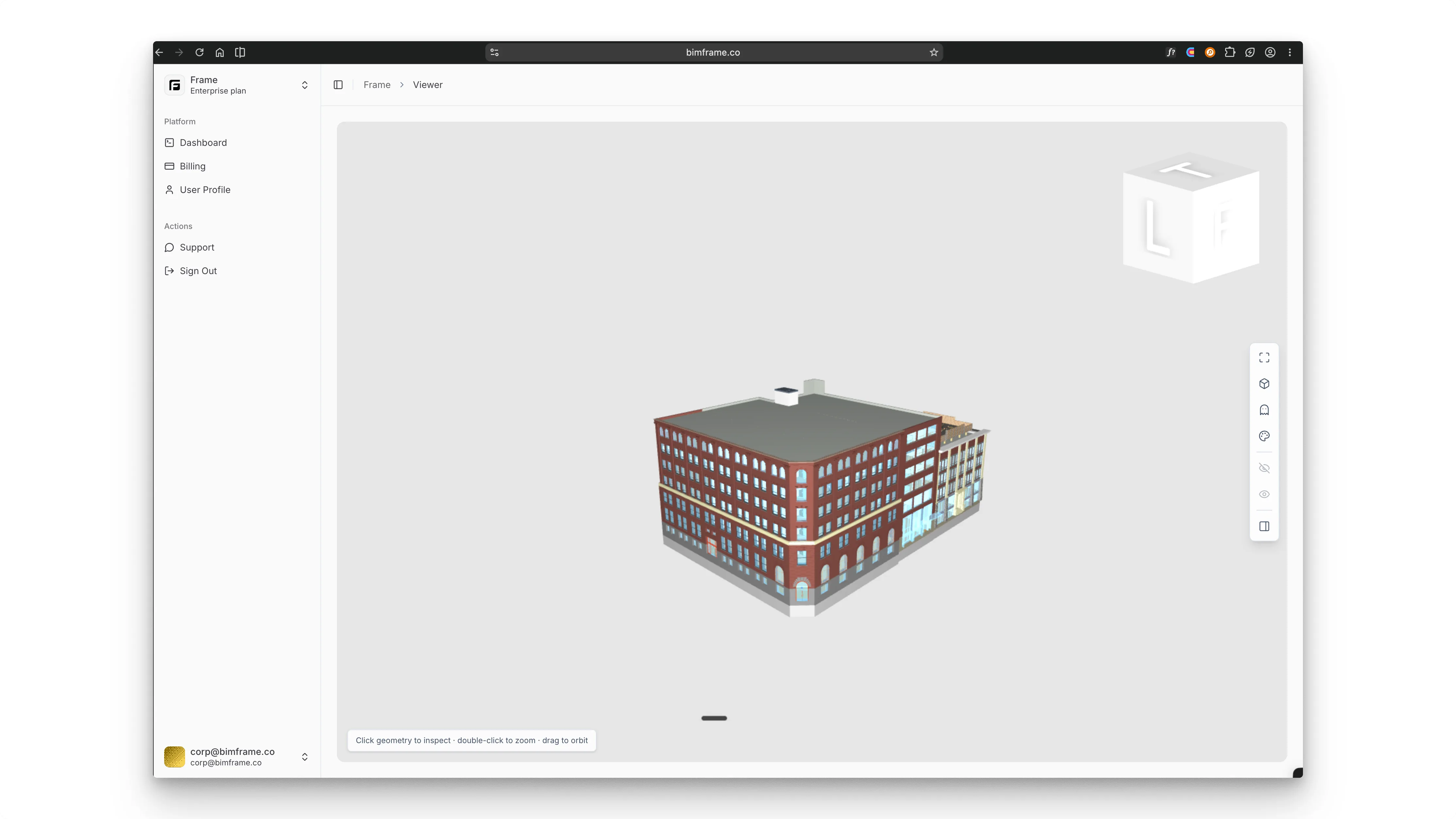
- Open the model to inspect its geometry, object structure, storeys, and properties in the browser viewer.
Create the IFC Starter report
Section titled “Create the IFC Starter report”- Open the report template dialog for the ready model.
- Choose IFC Starter Template.
- Generate and download the Power BI template.
- Open it in Power BI Desktop and authenticate when prompted.
- Use filters and tables to narrow the review, then inspect the same objects in the embedded Frame viewer.
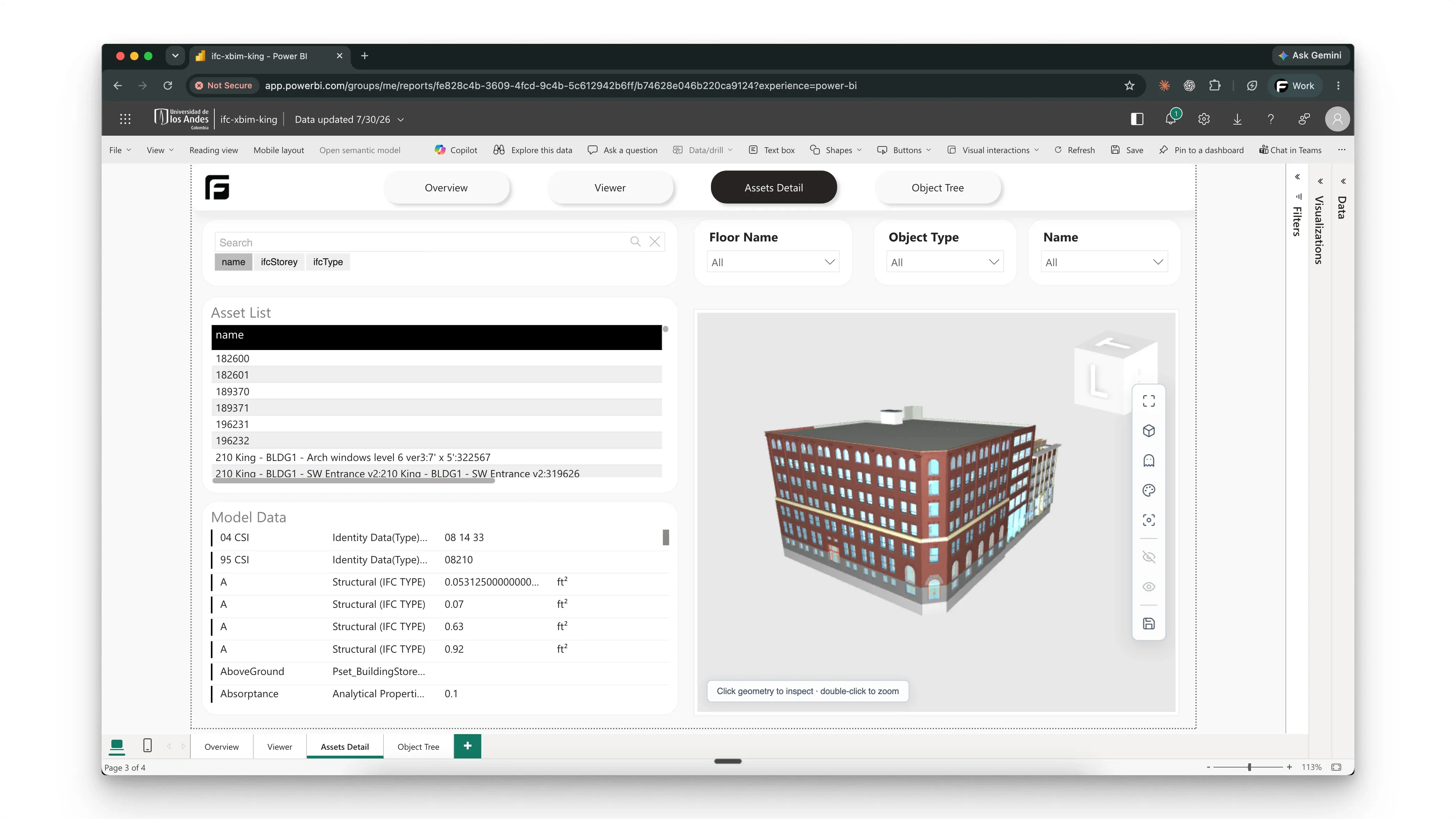
The starter report includes model assets and properties, category and building storey context, filters, and the 3D viewer. Extend it with your own cost, schedule, or project data as needed.